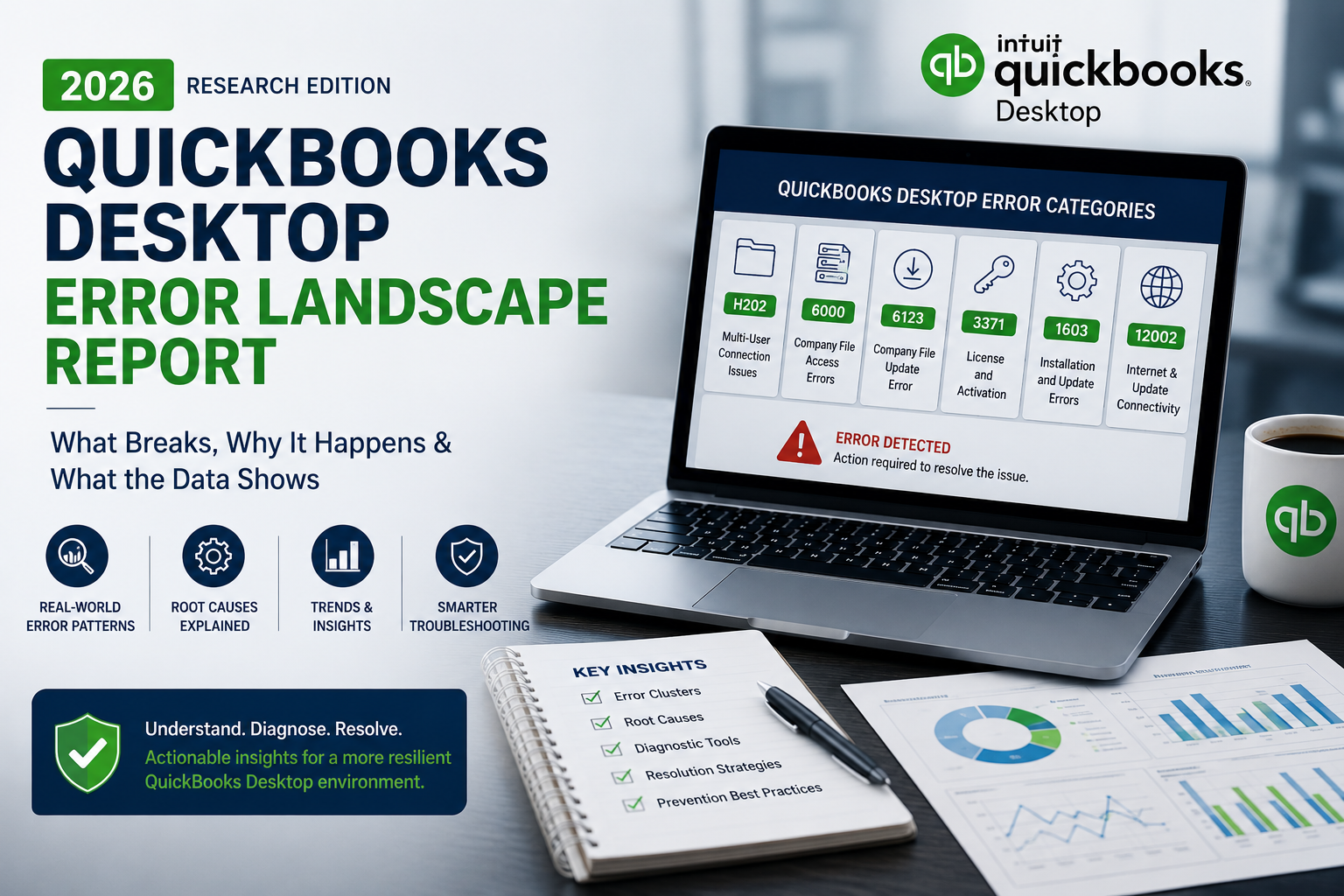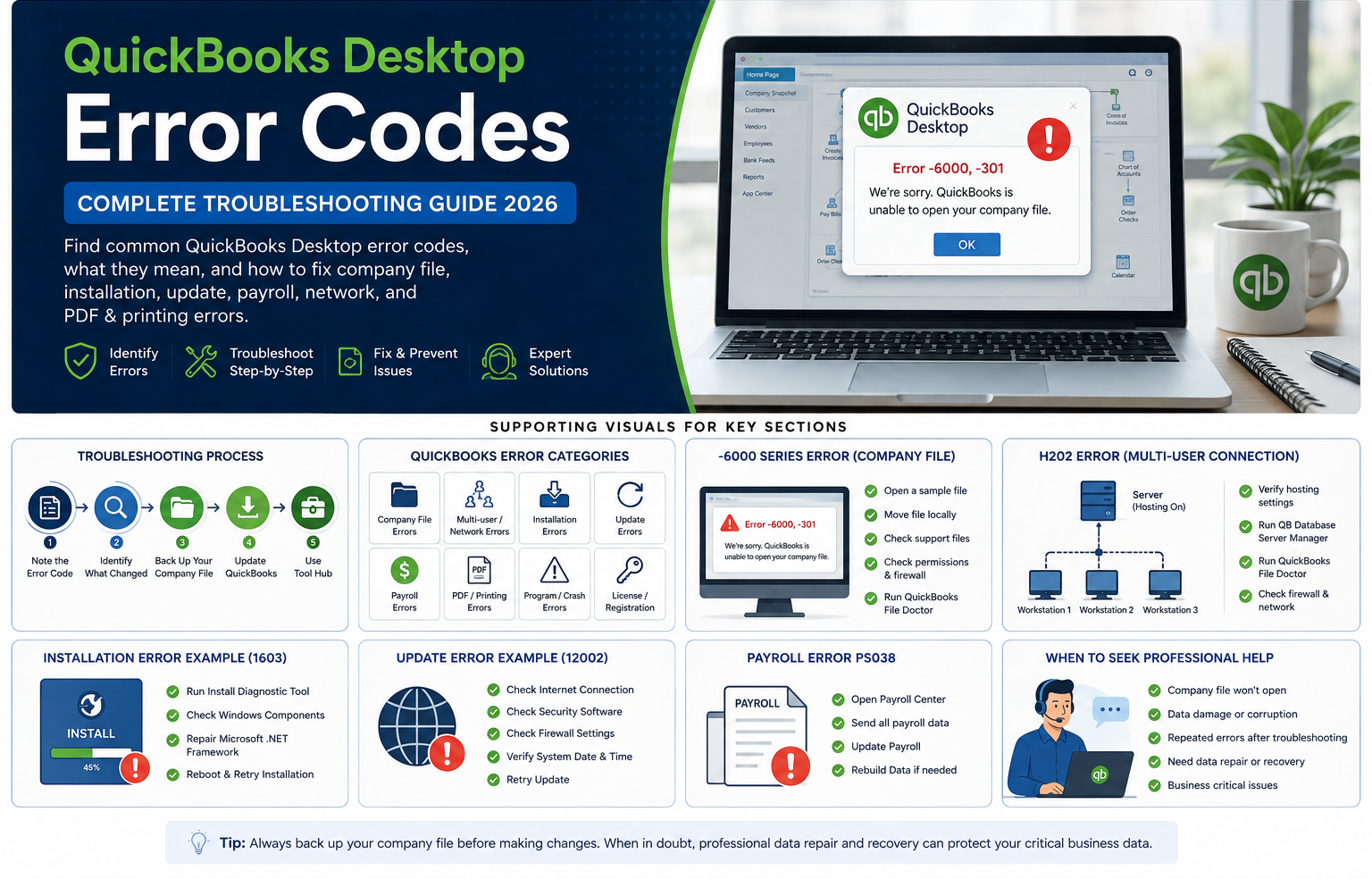

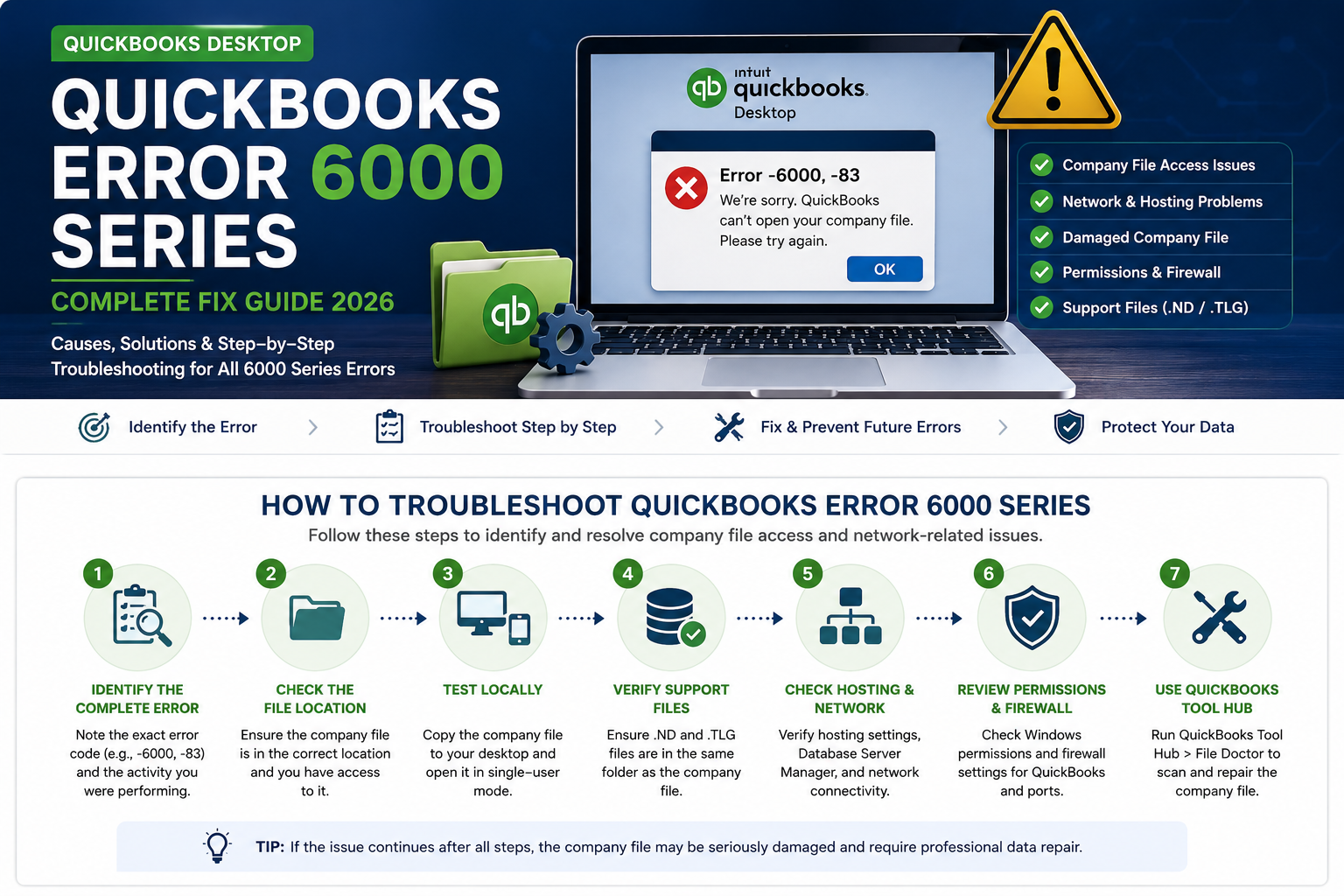

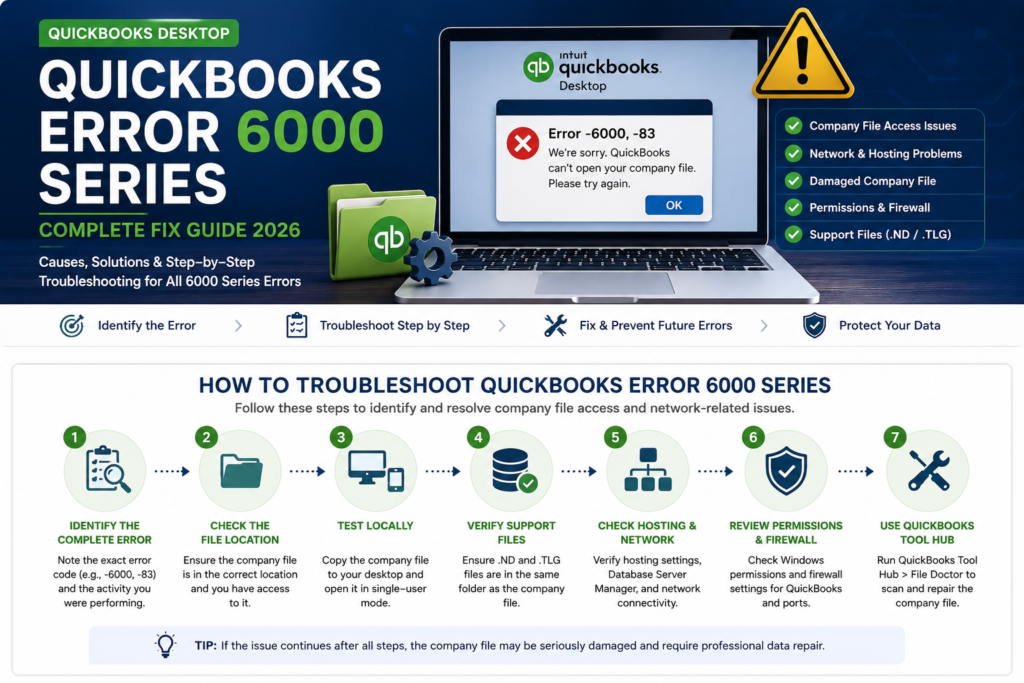
QuickBooks Error 6000 is one of the most common groups of company-file errors encountered by QuickBooks Desktop users. These errors can appear when QuickBooks cannot open, access, restore, back up, or connect to a company file correctly.
You may encounter errors such as -6000, -77, -6000, -82, -6000, -83, -6000, -301, -6000, -107, -6000, -305, -6010, -100, -6176, 0, -6189, -83, or -6190, -83.
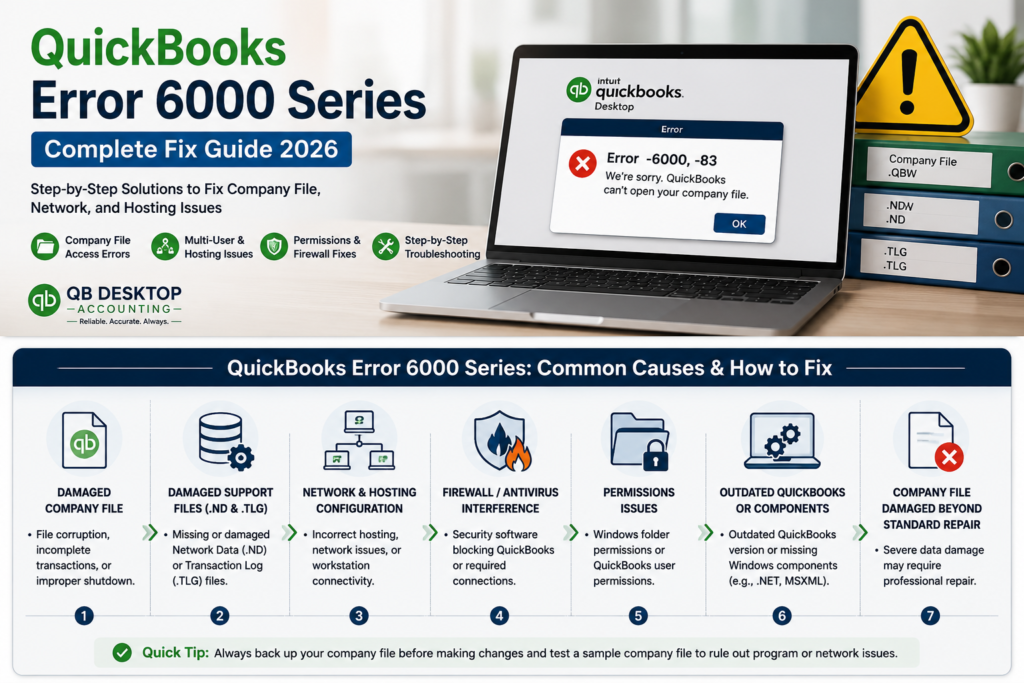
Although these errors belong to the same general 6000 family, they do not all have the same cause. A damaged company file, incorrect file location, network configuration, firewall restriction, Windows permission issue, or incorrect multi-user hosting can all lead to a 6000-series error.
If you’re troubleshooting a different Desktop error, our QuickBooks Desktop error codes troubleshooting hub can help you identify the relevant error and troubleshooting path.
Quick answer: Start by identifying the complete error code, back up the company file if possible, test a sample company file, and determine whether the problem occurs with a local copy. If the local file works but the network copy does not, investigate hosting, permissions, firewall settings, and Database Server Manager. If the company file remains damaged or inaccessible after standard troubleshooting, professional data repair may be required.
What Is QuickBooks Error 6000?
QuickBooks Error 6000 refers to a family of errors that generally occur when QuickBooks Desktop has trouble accessing or working with a company file.
The number after -6000 matters because it provides useful information about the type of problem QuickBooks has encountered.
For example, users may encounter:
- QuickBooks Error -6000, -77
- QuickBooks Error -6000, -82
- QuickBooks Error -6000, -83
- QuickBooks Error -6000, -301
- QuickBooks Error -6000, -107
- QuickBooks Error -6000, -305
- QuickBooks Error -6000, -1076
- QuickBooks Error -6010, -100
- QuickBooks Error -6138, -105
- QuickBooks Error -6176, 0
- QuickBooks Error -6189, -83
- QuickBooks Error -6190, -83
- QuickBooks Error -6210, 0
The problem can occur when the company file is stored locally or when it is being accessed through a server or network.
If QuickBooks is also becoming unresponsive while attempting to load the company file, see our guide on QuickBooks not responding when opening a company file for additional troubleshooting steps.
QuickBooks Error 6000 Series at a Glance
| Error Code | Common Situation | Starting Troubleshooting Step |
| -6000, -77 | Company-file access or location issue | Check the file location and test locally |
| -6000, -82 | Company-file or hosting issue | Check hosting and run File Doctor |
| -6000, -83 | Opening, restoring, or backing up a company file | Check file location, permissions, and hosting |
| -6000, -301 | Support-file or company-file issue | Check .ND, .TLG, and related files |
| -6000, -107 | Transaction log problem | Check the .TLG file |
| -6000, -305 | Company-file access problem | Run File Doctor |
| -6000, -1076 | QuickBooks program/installation issue | Troubleshoot the installation |
| -6010, -100 | Incorrect hosting | Check multi-user hosting |
| -6138, -105 | Server or hosting configuration | Check Database Server Manager |
| -6176, 0 | Firewall/network communication | Check firewall and connectivity |
| -6189, -83 | Server/company-file access | Check hosting and network configuration |
| -6190, -83 | Company-file/server access | Check hosting and file location |
| -6210, 0 | Incorrect hosting | Check which computer is hosting |
The exact troubleshooting method should be based on the complete error code and what you were doing when the message appeared.
Why Does QuickBooks Error 6000 Occur?
There isn’t one universal cause of the 6000 series.
Damaged QuickBooks support files
QuickBooks uses supporting files associated with the company file, including files with .ND and .TLG extensions.
If these files become damaged or contain incorrect information, QuickBooks may have trouble accessing the company file.
Company-file damage
The main .QBW file may contain damaged data or structural problems.
Company-file damage can occur after unexpected shutdowns, system failures, failed operations, network interruptions, or other file-related problems.
Incorrect hosting configuration
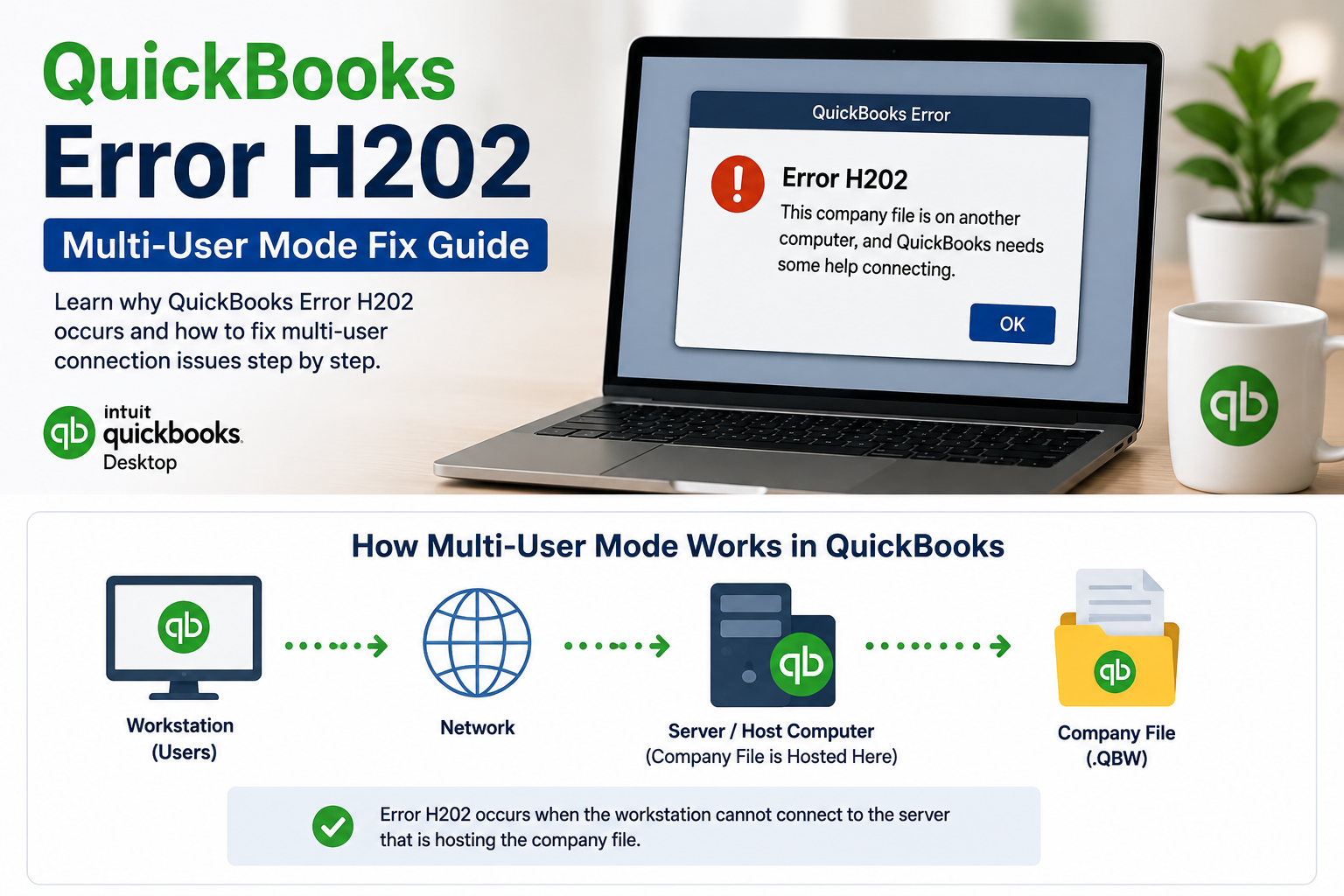
QuickBooks Desktop multi-user environments depend on correct hosting configuration.
If a workstation incorrectly attempts to host the company file, certain 6000-series errors may appear.
Network connectivity problems
When the company file is stored on a server, QuickBooks needs reliable communication between the workstation and the host computer.
Network interruptions or an incorrect network path can prevent the company file from opening.
Firewall restrictions
Windows Firewall or third-party security software can interfere with QuickBooks communication between computers.
Folder permissions
QuickBooks needs appropriate Windows access to the folder containing the company file.
Incorrect folder-sharing or permission settings can prevent users from opening or modifying the file.
Damaged QuickBooks installation
Sometimes the problem is with QuickBooks itself rather than the company file.
Testing a sample company file is an important way to distinguish between these situations.
External storage problems
Company files stored on external drives or unsuitable locations may also experience access problems.
Testing a local copy can help determine whether the storage location is contributing to the error.
Before Troubleshooting QuickBooks Error 6000
Before making changes to your company file, take a few precautions.
Back up the company file
If you can still open the company file, create a current backup before attempting repairs.
If the file cannot be opened, identify your latest reliable backup before making major changes.
If the company file has already been lost or is no longer available on the original computer, see our information on recovering lost QuickBooks company data before attempting potentially destructive repairs.
Record the complete error number
Don’t simply record “QuickBooks Error 6000.”
Write down the complete message, such as:
Error -6000, -301
or:
Error -6000, -83
The complete code makes it easier to determine which troubleshooting path applies.
Determine where the company file is stored
Identify whether the .QBW file is:
- On your local computer
- On another computer
- On a Windows server
- On a shared network folder
- On an external drive
This distinction is critical because network-related errors require a different approach from local company-file problems.
Check whether other users are affected
If only one workstation has the problem, investigate that computer first.
If every workstation receives the same error, investigate the company file, server, network, hosting configuration, or permissions.
How to Fix QuickBooks Error 6000
For most 6000-series errors, start with these basic troubleshooting steps.
1. Update QuickBooks Desktop
Open QuickBooks Desktop and install the latest available update for your version.
After updating, restart QuickBooks and try opening the company file again.
2. Restart QuickBooks and Windows
Close QuickBooks completely.
Restart Windows and try opening the company file again.
If the file is hosted on a server, make sure the server is available.
3. Open a sample company file
This is one of the most useful diagnostic tests.
Open QuickBooks without opening your regular company file and select a sample company file.
If the sample company file opens normally, QuickBooks itself is likely functioning and the issue may be specific to your company file or its location.
If the sample file also fails, investigate the QuickBooks installation or computer environment.
4. Test the company file locally
If the company file is stored on a server, network folder, or external drive, create a copy and place it on the local hard drive.
Then try opening the local copy.
If the local copy works but the network copy does not, investigate:
- Network connectivity
- Folder permissions
- Hosting
- Firewall settings
- Database Server Manager
- Network paths
This is an important diagnostic step because it helps separate company-file problems from network problems.
5. Run QuickBooks File Doctor
QuickBooks Tool Hub includes File Doctor for certain company-file and network problems.
Open QuickBooks Tool Hub and select:
Company File Issues → Run QuickBooks File Doctor
Select the affected company file and follow the instructions.
If automated troubleshooting does not resolve the problem, you may need to investigate whether the underlying company file requires specialized repair.
How to Fix QuickBooks Error -6000, -77
QuickBooks Error -6000, -77 can occur when QuickBooks cannot properly access the company file.
Possible causes include:
- Company-file location
- Damaged support files
- Network configuration
- External-drive storage
- File permissions
Run QuickBooks as administrator
Close QuickBooks Desktop.
Right-click the QuickBooks Desktop icon and select Run as administrator.
Then try opening the company file again.
Move a copy of the company file locally
If the company file is stored on an external drive or network location, create a copy on the local computer and test it.
If the local copy works, investigate the original storage location.
Run File Doctor
Open QuickBooks Tool Hub and select:
Company File Issues → QuickBooks File Doctor
Allow the scan to complete before testing the file again.
Rename support files
Open the folder containing the company file.
Look for related files with extensions such as:
- .ND
- .TLG
Rename the affected files by adding .OLD.
For example:
CompanyFile.qbw.nd
can become:
CompanyFile.qbw.nd.OLD
QuickBooks can recreate these support files when needed.
How to Fix QuickBooks Error -6000, -82
QuickBooks Error -6000, -82 can occur when opening or accessing a company file.
Check the company-file location
Make sure the company file is stored in an accessible folder and that the user has appropriate permissions.
Check multi-user hosting
If you use QuickBooks Desktop in multi-user mode, determine which computer is configured to host the company file.
On the workstation, go to:
File → Utilities
Review the hosting options.
A workstation that should not host the company file should not be configured as the host.
Run Quick Fix my Program
Open QuickBooks Tool Hub and select:
Program Problems → Quick Fix my Program
Restart QuickBooks after the tool finishes.
Check whether the problem is isolated
If another workstation can open the company file, the issue may be specific to one computer.
If all workstations are affected, investigate the company file, server, hosting configuration, or network.
How to Fix QuickBooks Error -6000, -83
QuickBooks Error -6000, -83 can occur when opening, restoring, or backing up a company file.
The appropriate troubleshooting path depends on what you were doing when the error appeared.
If you were creating a backup
If the company file is stored on a server, create a local copy and test the backup operation from the local computer.
If you were restoring a backup
Check that the backup file and destination folder are accessible.
Also verify the filename and folder path.
If the company file is on a server
Check:
- Server availability
- Hosting configuration
- Firewall settings
- Folder permissions
- Database Server Manager
- Network connectivity
If the problem occurred after moving the company file between computers, compare the issue with our guide on QuickBooks migration failures on Windows 11 to determine whether the file-transfer process may be involved.
Run File Doctor
Run QuickBooks File Doctor through Tool Hub and test the company file again after the scan completes.
How to Fix QuickBooks Error -6000, -301
QuickBooks Error -6000, -301 can be associated with damaged support files, company-file issues, or encryption software.
Update QuickBooks
Install the latest appropriate update for your QuickBooks Desktop version.
Rename the .ND and .TLG files
Open the company-file folder and locate the files associated with your .QBW company file.
Rename the relevant .ND and .TLG files by adding .OLD.
For example:
CompanyFile.qbw.tlg
becomes:
CompanyFile.qbw.tlg.OLD
Run File Doctor
Open:
QuickBooks Tool Hub → Company File Issues → QuickBooks File Doctor
Run the scan and then try opening the company file.
Check encryption software
If third-party encryption software is installed, investigate whether it is interfering with QuickBooks’ access to the company file.
Do not delete encrypted files or change encryption settings without understanding how the software manages your accounting data.
If the company file remains damaged after these steps, professional QuickBooks data repair services may be appropriate.
How to Fix QuickBooks Error -6000, -107
Error -6000, -107 can be associated with a damaged transaction log file.
The transaction log normally has a .TLG extension.
Rename the transaction log file
- Close QuickBooks Desktop.
- Open the folder containing the company file.
- Locate the corresponding .TLG file.
- Rename the file by adding .OLD.
- Reopen QuickBooks.
- Try opening the company file again.
If the problem continues, run File Doctor and investigate possible company-file damage.
How to Fix QuickBooks Error -6000, -305
QuickBooks Error -6000, -305 is another company-file access error.
Start with:
- Update QuickBooks Desktop.
- Confirm the company-file location.
- Test a local copy.
- Run QuickBooks Tool Hub.
- Run File Doctor.
- Check network and folder permissions.
- Check hosting if the file is on a server.
- Investigate possible company-file damage.
If standard troubleshooting does not restore access, a deeper examination of the company file may be necessary.
How to Fix QuickBooks Error -6000, -1076
Error -6000, -1076 can indicate a problem with the QuickBooks program or installation.
Test a sample company file
If the sample company file opens normally, the problem may be isolated to your company file.
If the sample file also fails, investigate the QuickBooks installation.
Use QuickBooks Tool Hub
Open QuickBooks Tool Hub and go to:
Program Problems
Run the appropriate program repair utility.
If QuickBooks continues to malfunction after program troubleshooting, our QuickBooks Desktop support service can help identify whether the issue is related to the application, installation, or company file.
How to Fix QuickBooks Error -6010, -100
Error -6010, -100 can occur when the company file is hosted by a computer that should not be hosting it.
This is particularly relevant in multi-user environments.
Check hosting settings
Open QuickBooks on the affected computer.
Go to:
File → Utilities
Review the hosting option.
If the workstation should not host the company file, stop hosting multi-user access.
Check the server
Make sure the designated server is configured correctly.
Check Database Server Manager
On the server, open QuickBooks Database Server Manager and verify that the company-file folder is configured correctly.
Scan the folder and then try opening the company file again.
QuickBooks Errors -6138, -105, -6189, -83, and -6190, -83
Several related errors can occur when QuickBooks has trouble communicating with the computer hosting the company file.
Examples include:
- -6138, -105
- -6189, -83
- -6190, -83
- -6210, 0
If these errors occur in multi-user mode, start by checking the hosting configuration.
Check the designated server
Confirm that the computer intended to host the company file is configured correctly.
Check the workstations
Make sure workstations are not unintentionally configured as hosts.
Check Database Server Manager
On the server:
- Open QuickBooks Database Server Manager.
- Locate the company-file folder.
- Scan the folder.
- Confirm QuickBooks recognizes the company file.
- Reopen QuickBooks on the workstation.
Check firewall settings
If the server and hosting setup are correct but workstations still cannot access the company file, investigate firewall and security software.
How to Fix QuickBooks Error -6176, 0
QuickBooks Error -6176, 0 can be related to firewall or network communication.
Check the firewall
Review Windows Firewall and third-party security software.
Make sure QuickBooks is allowed to communicate between the workstation and server.
Run File Doctor
Use QuickBooks Tool Hub to run File Doctor and check for company-file or network problems.
Test the company file locally
Copy the company file to the local computer and test it.
If the local copy opens but the network copy does not, focus on the network, firewall, permissions, and hosting configuration.
How to Fix QuickBooks Error 6000 in Multi-User Mode
When a 6000-series error occurs only in multi-user mode, the network environment should be one of the first areas you investigate.
Check which computer hosts the company file
Make sure there is a clearly designated server or host.
Check hosting on workstations
Workstations should not unintentionally host the company file.
Check Database Server Manager
The server should have the appropriate Database Server Manager configuration.
Scan the company-file folder
Use Database Server Manager to scan the folder containing the company file.
Check folder permissions
Make sure users have the appropriate Windows permissions.
Check firewall settings
Firewall rules can prevent workstations from communicating with the server.
Test another workstation
If one workstation works while another does not, the problem may be isolated to the affected computer.
How to Fix QuickBooks Error 6000 When the Company File Is on an External Drive
If the company file is stored on an external drive, create a copy on the local hard drive and test that copy.
If the local copy opens successfully, the problem may be related to:
- External-drive connectivity
- File permissions
- Storage location
- Drive reliability
- Network configuration
For troubleshooting, avoid repeatedly opening and modifying the company file from unstable storage.
If multiple users need simultaneous access, use an appropriate server-based multi-user configuration instead of treating an external drive as a QuickBooks server.
QuickBooks Error 6000: Network Problem or Company-File Damage?
A 6000-series error does not automatically mean that your company file is corrupted.
The symptoms can help distinguish between a network problem and company-file damage.
Signs the problem may be network or hosting related
The issue is more likely to involve the network when:
- The company file opens locally.
- Other users can open the file.
- The error occurs only in multi-user mode.
- One workstation is affected.
- Server settings recently changed.
- Firewall settings recently changed.
Signs the company file may be damaged
The company file may require deeper troubleshooting when:
- The same file fails on multiple computers.
- A local copy also fails.
- File Doctor reports problems.
- QuickBooks crashes while opening the file.
- Rebuild Data reports data problems.
- Transactions or lists behave unexpectedly.
If QuickBooks is also repeatedly closing unexpectedly rather than simply displaying a 6000 error, our guide to why QuickBooks keeps crashing and how to fix it covers a separate set of troubleshooting causes.
When the evidence points toward company-file damage, specialized QuickBooks company-file repair may be more appropriate than repeatedly changing network settings.
What to Do When QuickBooks File Doctor Doesn’t Fix Error 6000
QuickBooks File Doctor can help with certain company-file and network problems, but it is not a universal repair solution.
If File Doctor does not resolve the error, work through these checks.
Test the company file locally
This helps determine whether the network or hosting environment is responsible.
Check hosting
Make sure the company file is hosted by the correct computer.
Check Windows permissions
Review the folder permissions for the company-file location.
Check firewall settings
Make sure security software is not blocking QuickBooks communication.
Check Database Server Manager
If the file is hosted on a server, scan the company-file folder through Database Server Manager.
Test a known-good backup
If a backup opens successfully while the current file does not, the current company file may have data damage.
Consider professional repair
If the company file remains inaccessible after standard troubleshooting, QuickBooks data repair may be necessary to determine whether the existing file can be restored without compromising the underlying accounting information.
When You Need QuickBooks Data Recovery Instead
Data repair and data recovery are different processes.
Data repair generally applies when the company file exists but appears damaged or produces errors.
Data recovery becomes more relevant when the accounting data is missing, deleted, lost, or otherwise unavailable.
Consider QuickBooks data recovery services when a company file has been:
- Accidentally deleted
- Lost after a computer failure
- Damaged beyond normal repair
- Lost during a failed migration
- Removed from its original storage location
- Made inaccessible without a usable backup
If the issue began while moving QuickBooks or the company file to another computer, a QuickBooks data migration service may also be relevant because the underlying problem could be connected to the file-transfer process.
How to Prevent QuickBooks 6000 Errors
You cannot prevent every QuickBooks Desktop error, but good file and network management can reduce recurring problems.
Maintain regular backups
Keep reliable backups of your QuickBooks company files.
A current backup gives you a recovery option if the working company file becomes damaged.
Keep QuickBooks updated
Install appropriate updates for your QuickBooks Desktop version.
Use a consistent company-file location
Avoid unnecessarily moving the .QBW file between computers, external drives, and network folders.
Configure multi-user hosting correctly
Make sure the server and workstations have clearly defined roles.
Maintain network permissions
If several employees use QuickBooks Desktop, verify that the company-file folder has appropriate permissions.
Monitor firewall and security software
Security software changes can sometimes affect QuickBooks network communication.
Address recurring errors
If a 6000-series error repeatedly returns after temporary fixes, investigate the underlying company-file or network problem instead of treating every occurrence as a separate issue.
QuickBooks Error 6000 Troubleshooting Checklist
Before escalating a QuickBooks 6000 error, work through this checklist:
- Record the complete QuickBooks error code.
- Record the exact error message.
- Note what you were doing when the error appeared.
- Identify where the company file is stored.
- Create a backup if the company file can still be accessed.
- Update QuickBooks Desktop.
- Restart QuickBooks and Windows.
- Test a sample company file.
- Test a local copy of the company file.
- Run QuickBooks Tool Hub.
- Run QuickBooks File Doctor.
- Check .ND and .TLG support files.
- Check hosting configuration.
- Check QuickBooks Database Server Manager.
- Check Windows folder permissions.
- Check firewall/security software.
- Test another workstation if using multi-user mode.
- Test a known-good backup if available.
- Avoid repeated repair attempts if the company file appears seriously damaged.
- Consider professional repair or recovery when standard troubleshooting fails.
Frequently Asked Questions About QuickBooks Error 6000
What does QuickBooks Error 6000 mean?
QuickBooks Error 6000 refers to a family of errors that generally occur when QuickBooks Desktop has trouble accessing or working with a company file. The complete suffix helps narrow down the likely cause.
What is the fastest way to fix QuickBooks Error 6000?
Start by updating QuickBooks, testing a sample company file, testing a local copy, and running QuickBooks File Doctor. If the local file works but the network version does not, investigate hosting, permissions, firewall settings, and Database Server Manager.
Why does QuickBooks show Error -6000, -77?
Error -6000, -77 can be associated with company-file access, file location, damaged support files, or storage and network configuration. Testing the file locally and checking its support files can help identify the cause.
How do I fix QuickBooks Error -6000, -82?
Start by updating QuickBooks and running File Doctor. Then check the company-file location, hosting configuration, permissions, and multi-user setup.
What causes QuickBooks Error -6000, -83?
Error -6000, -83 can occur when opening, restoring, or backing up a company file. Depending on the situation, troubleshooting may involve the company-file location, hosting, permissions, firewall, Database Server Manager, or company-file damage.
What causes QuickBooks Error -6000, -301?
Possible causes include damaged QuickBooks support files, company-file problems, or third-party encryption software. Updating QuickBooks, checking the relevant support files, and running File Doctor are common troubleshooting steps.
Will renaming the QuickBooks .ND and .TLG files delete my company data?
Renaming .ND and .TLG support files does not delete the accounting data stored in the .QBW company file. These supporting files can be recreated by QuickBooks when required.
Can QuickBooks Error 6000 be caused by a firewall?
Yes. Firewall restrictions can interfere with communication between a workstation and the computer hosting the company file, particularly in multi-user environments.
How do I know whether QuickBooks Error 6000 is caused by the company file or my computer?
Test a sample company file. If the sample file opens normally, the issue may be specific to your company file or its location. If the sample file also fails, investigate the QuickBooks installation or computer environment.
Should I use QuickBooks File Doctor for every 6000 error?
No. File Doctor is intended for certain company-file and network problems. It is not a universal solution for every QuickBooks Desktop error.
What should I do if QuickBooks File Doctor doesn’t fix Error 6000?
Test the company file locally, review hosting and network configuration, verify folder permissions, check firewall settings, and test a known-good backup. If the company file remains damaged or inaccessible, professional company-file repair may be necessary.
Can QuickBooks Error 6000 cause data loss?
The error itself does not necessarily mean data has been lost. However, company-file corruption, hardware failure, unsuccessful migration, or improper repair attempts can create data risks. Preserve a backup before performing major repair operations.
Final Takeaway
QuickBooks Error 6000 is not one single error with one universal solution.
The most effective approach is to identify the complete error code, determine where the company file is stored, and establish whether the problem follows the company file or remains with the QuickBooks installation or network.
For most situations, start with:
Update QuickBooks → Back up the file → Test a sample file → Test the company file locally → Run File Doctor → Check hosting/network/permissions → Investigate data damage
If the issue is caused by hosting or network configuration, correcting that environment may resolve the error.
If the company file itself is damaged, standard troubleshooting may not be enough. In that situation, professional company-file repair may be appropriate.
If the company file is missing or cannot be recovered through normal repair methods, data recovery may be the better path.