
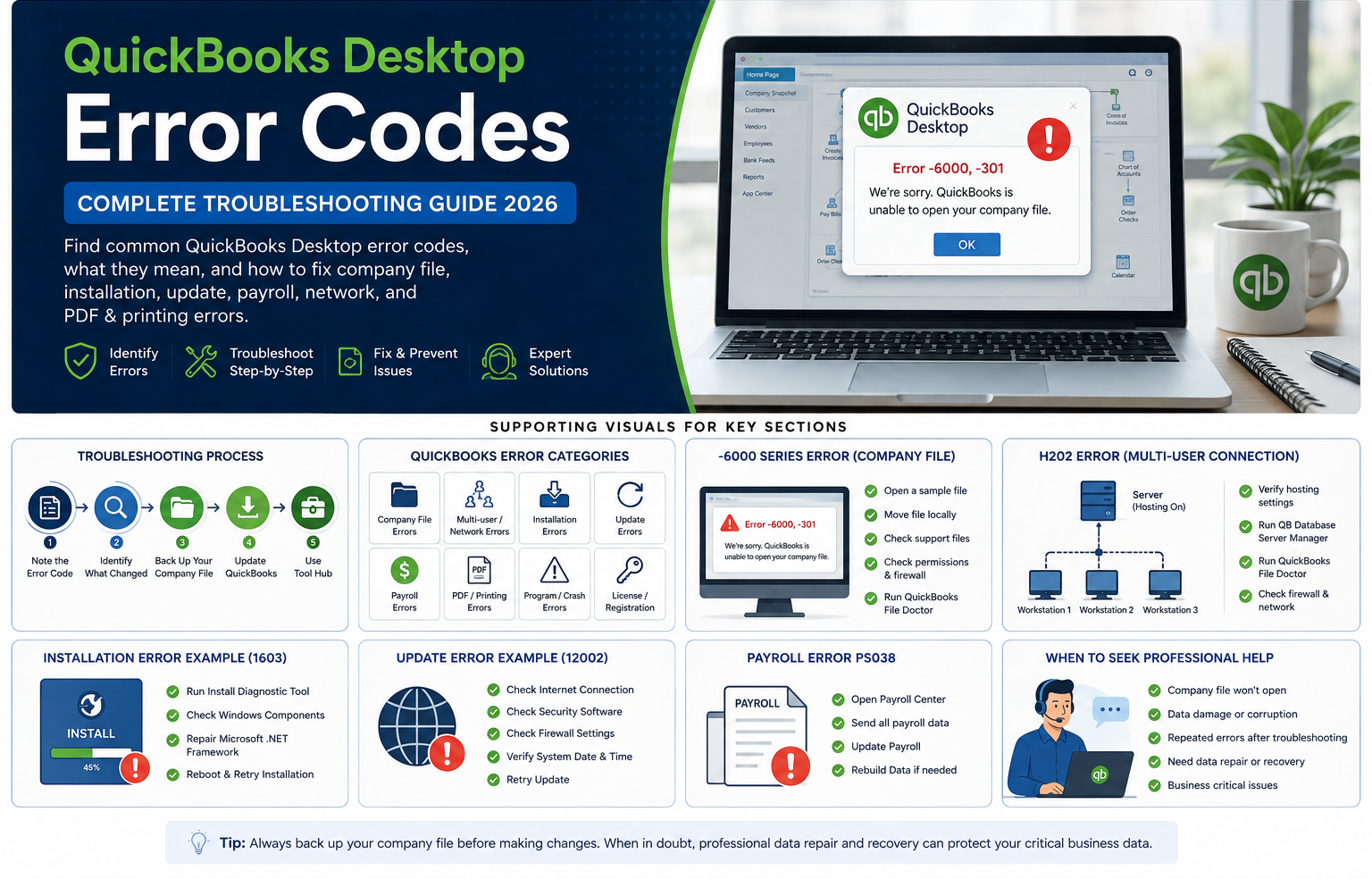

QuickBooks Desktop error codes can appear when opening a company file, installing or updating QuickBooks, switching to multi-user mode, running payroll, accessing online services, or printing and creating PDFs.
The important thing is that the error code usually points to the type of problem rather than providing the complete diagnosis. For example, QuickBooks Desktop’s -6000 series generally relates to accessing a company file, while H-series errors are associated with multi-user connectivity. Installation errors such as 1603 and 1328 can point toward Windows components or installation files, while PS038 is associated with payroll data that is stuck in an “Online to Send” status.
This guide brings the most important QuickBooks Desktop error categories together in one troubleshooting hub.
Quick answer: If you see a QuickBooks Desktop error, first note the exact error number and message, back up your company file if you can, update QuickBooks, and then choose the troubleshooting category below that matches the problem. For many common issues, the QuickBooks Tool Hub provides dedicated tools for company-file, network, program, installation, and other problems.
In This Guide
- QuickBooks Desktop Error Codes at a Glance
- How to Troubleshoot a QuickBooks Desktop Error
- -6000 Series Errors
- H202, H101, H303 & H505 Errors
- Error 6123
- Error 3371
- Installation Errors
- Update Errors
- Payroll Error PS038
- PDF & Printing Errors
- QuickBooks Crashing or Not Responding
- Troubleshooting by Problem
- When Standard Troubleshooting Doesn’t Work
- Company File Recovery & Data Repair
- Computer Upgrade & Migration Errors
- Preventing Recurring QuickBooks Errors
- Troubleshooting Checklist
- FAQs
- Final Takeaway
QuickBooks Desktop Error Codes at a Glance
| Error code/category | Usually associated with | First troubleshooting step |
| -6000 series | Opening or accessing company files | Test the file locally, check permissions/network setup, and run File Doctor |
| H202 | Multi-user/network connection | Check hosting and run QuickBooks Database Server Manager |
| H101/H303/H505 | Multi-user hosting/configuration | Check server hosting and network connectivity |
| 6123 | Opening, upgrading or restoring a company file | Open the file from within QuickBooks and troubleshoot the company file |
| 3371 | License/registration data | Run the 3371 Error Fix in QuickBooks Tool Hub |
| 1601/1603/1642 | Installation or update problems | Run the Install Diagnostic Tool and check Windows components |
| 1328 | Installing, updating, uninstalling or repairing QuickBooks | Repair or reinstall QuickBooks |
| 12002/12007/12009/12029/12031 | Update or payroll-update connectivity | Check internet, security software and firewall settings |
| 12045/12157/12038/12037 | QuickBooks update errors | Check system date/time and update configuration |
| PS038 | Payroll data stuck “Online to Send” | Send payroll data and rebuild data if necessary |
| PDF/printing errors | PDF creation, printing or program problems | Use Program Problems tools in Tool Hub |
| QuickBooks stopped responding | Program, file or system issues | Use Quick Fix my Program and isolate the file/program causes |
These categories reflect current Intuit troubleshooting guidance. The QuickBooks Tool Hub specifically includes tools for company-file issues, network problems, program problems, installation issues, and other common errors.
How to Troubleshoot a QuickBooks Desktop Error
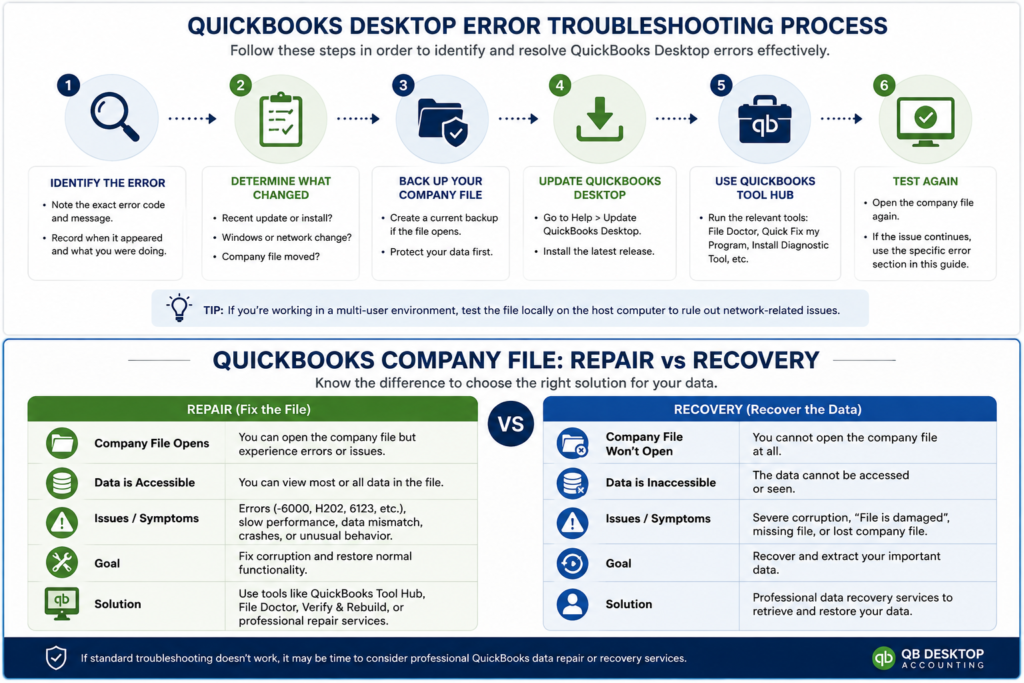
Before jumping into a complicated repair, use this basic troubleshooting sequence.
1. Write down the exact error code
Don’t search only for “QuickBooks error.”
Record:
- The complete error number
- Any status code
- The exact error message
- What were you doing when it appeared
- Whether everyone or only one computer is affected
- Whether the issue started after an update, Windows change or file move
For example:
Error -6000, -301 is much more useful than simply searching for “QuickBooks can’t open company file.”
Intuit identifies several possible causes for -6000, -301, including damaged support files, company-file damage, and encryption software.
2. Determine what changed
Ask:
- Did you update QuickBooks?
- Did you update Windows?
- Did you move the company file?
- Did you switch computers?
- Did you change the network?
- Did you install antivirus or security software?
- Did the error begin after a power outage or system crash?
This can quickly narrow the troubleshooting path.
3. Back up your company file
If the company file opens, create a current backup before performing repairs such as rebuilding data.
This is especially important when an error may involve company-file corruption or data integrity.
4. Update QuickBooks Desktop
An outdated installation can contribute to errors involving payroll, updates, online services, and program components.
For update-related problems, Intuit recommends checking system settings, internet connectivity, security software, and QuickBooks update configuration.
5. Try QuickBooks Tool Hub
QuickBooks Tool Hub is one of the first troubleshooting resources to consider for common Desktop errors.
Its tools include:
- Company File Issues
- Network Issues
- Program Problems
- Installation Issues
- Password Reset
- Advanced Tools
For example, the Company File Issues section includes Quick Fix My File and QuickBooks File Doctor, while Installation Issues includes tools for problems such as Error 3371.
QuickBooks Desktop -6000 Series Errors
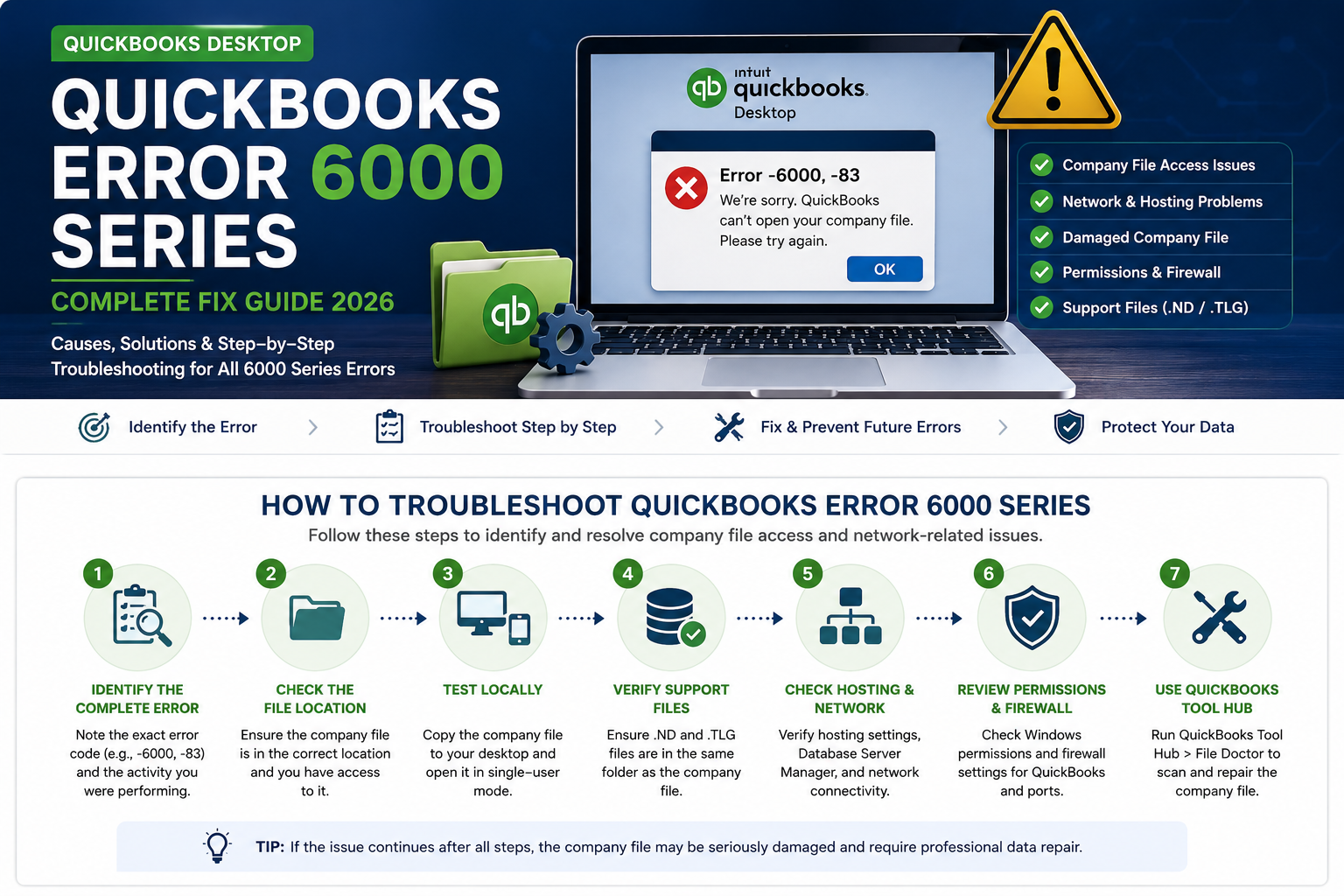
The -6000 series is one of the most important QuickBooks Desktop error groups because these errors commonly appear when QuickBooks cannot open or access a company file.
The exact combination matters.
Examples include:
- -6000, -77
- -6000, -80
- -6000, -82
- -6000, -83
- -6000, -107
- -6000, -301
- -6010, -100
- -6138, -105
- -6189, -83
- -6190, -83
- -6210, 0
The underlying cause can vary. Intuit’s current guidance identifies problems involving file location, firewall connectivity, damaged support files, hosting configuration, and QuickBooks installation.
How to troubleshoot a -6000 error
Step 1: Open a sample company file
Open QuickBooks without opening your normal company file.
Then select a sample company file.
This helps determine whether the problem is with:
- QuickBooks itself, or
- Your company file.
If the sample file opens normally, your company file or its location becomes the primary suspect.
Step 2: Move a copy of the company file locally
Copy the .QBW file to the Windows desktop and try opening it from QuickBooks.
If the file opens locally but not from the network location, investigate:
- Folder permissions
- Network configuration
- Hosting
- File location
- Firewall settings
Intuit specifically recommends this test for -6000 errors.
Step 3: Check the QuickBooks support files
Depending on the error, QuickBooks may use supporting files such as:
- .TLG
- .ND
- .DSN
For Error -6000, -301, Intuit recommends renaming affected support files by adding OLD; QuickBooks can recreate them.
Step 4: Check permissions and firewall settings
If the file is stored on a network, incorrect folder permissions or firewall configuration can prevent QuickBooks from connecting to it.
Step 5: Run QuickBooks File Doctor
Use QuickBooks Tool Hub’s Company File Issues section and run QuickBooks File Doctor when appropriate.
QuickBooks Error H202, H101, H303 and H505
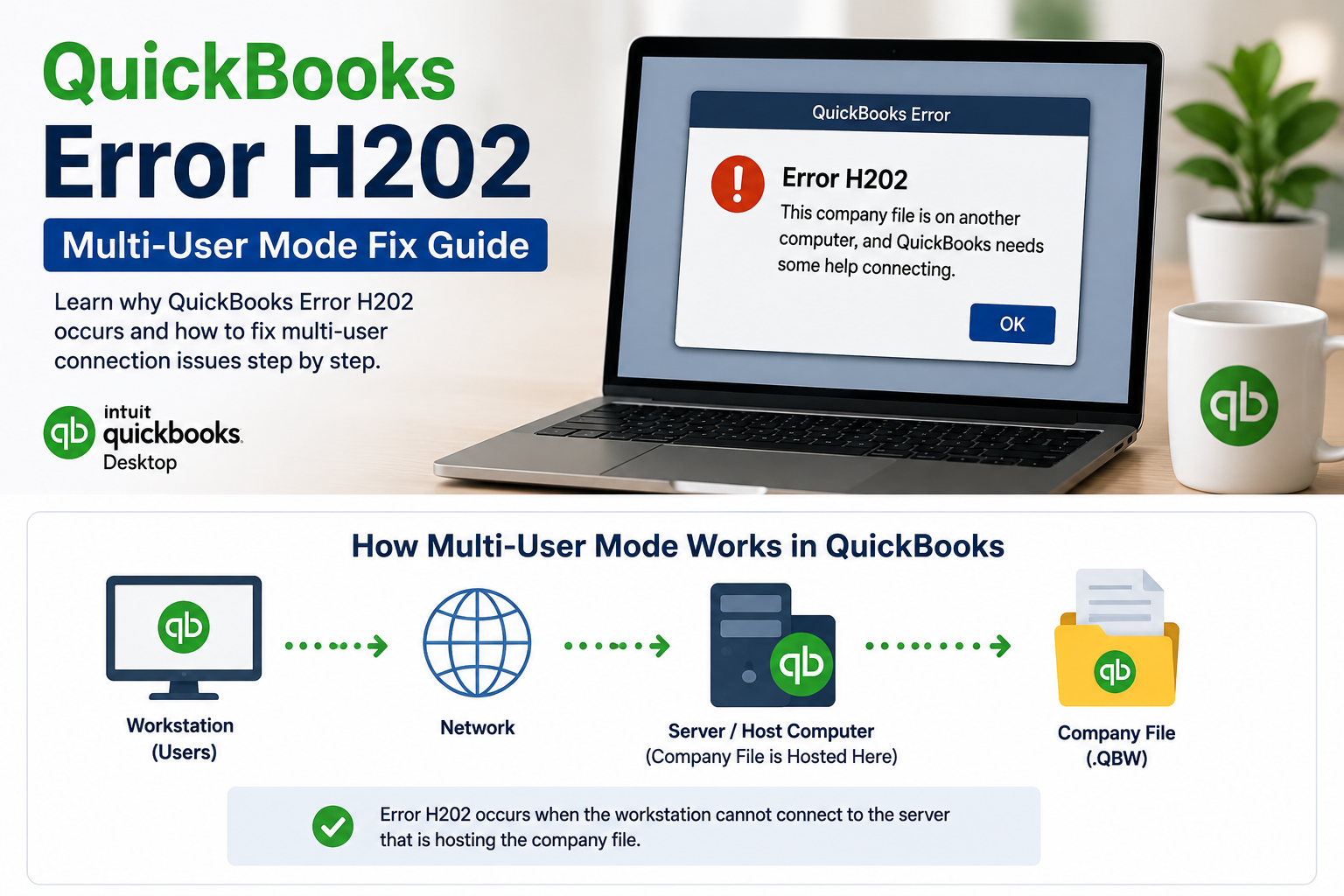
H-series errors are commonly associated with multi-user mode and connectivity between QuickBooks workstations and the computer hosting the company file.
For example, Error H202 occurs when something blocks the multi-user connection to the server.
Intuit currently groups H202 and H505 with H101 and H303 as errors that can occur when something prevents workstations from communicating with the server hosting the company file.
How to fix H202
Check hosting
Make sure the company file is being hosted correctly.
Run QuickBooks Database Server Manager
On the server computer:
- Open QuickBooks Database Server Manager.
- Browse to the company-file folder if necessary.
- Start the scan.
- Allow the tool to configure the necessary firewall permissions.
- Reopen QuickBooks on the affected workstations.
Intuit recommends Database Server Manager as part of the H202 troubleshooting process.
Run QuickBooks File Doctor
From QuickBooks Tool Hub:
Company File Issues → Run QuickBooks File Doctor
For network problems, select the option that checks the network and company file.
Check firewall configuration
QuickBooks processes and network services need to communicate between the workstation and server.
If firewall rules are blocking the connection, H202 or another H-series error can continue appearing.
Important: According to Intuit’s current guidance, QuickBooks Database Server Manager does not support Network Attached Storage (NAS) devices as a hosting environment.
QuickBooks Error 6123
Error -6123, 0 can occur when opening, upgrading, or restoring a company file.
Intuit recommends opening the company file from within QuickBooks rather than launching it directly through Windows Explorer. The current guidance also notes that -6123, 0 can be associated with hardware configurations, including ARM-based systems, where QuickBooks Desktop may not work properly.
What to try
- Open QuickBooks Desktop.
- Navigate to the company-file opening option.
- Select the company file from inside QuickBooks.
- Check whether the problem occurs with a sample company file.
- Use QuickBooks Tool Hub if the issue continues.
- Investigate the company file if only one file is affected.
If the file shows signs of corruption, professional QuickBooks data repair may be more appropriate than repeatedly attempting repairs.
QuickBooks Error 3371
Error 3371 is associated with QuickBooks Desktop being unable to load its license information.
Possible messages include:
Could not initialize license properties.
Intuit states that this can occur when required license data is missing or damaged.
How to fix Error 3371
The recommended first approach is:
- Close QuickBooks Desktop.
- Open QuickBooks Tool Hub.
- Select Installation Issues.
- Select 3371 Error Fix.
- Select OK.
- Start QuickBooks Desktop again.
If the error remains, reinstalling QuickBooks Desktop may be necessary.
Know more about QuickBooks Help & Support service
QuickBooks Desktop Installation Errors: 1601, 1603, 1642 and 1328
Installation errors can appear while installing, updating, repairing or uninstalling QuickBooks Desktop.
Error 1601
Error 1601 indicates that Windows Installer is inaccessible.
Error 1603
Error 1603 can indicate a problem with installation files or Windows components such as Microsoft .NET Framework.
Error 1642
Error 1642 can occur when there is an issue installing Microsoft .NET Framework during QuickBooks installation.
Intuit groups 1601, 1603, and 1642 as installation/update problems and recommends tools such as the QuickBooks Install Diagnostic Tool as part of troubleshooting.
Error 1328
Error 1328 can appear while installing, uninstalling, updating or repairing QuickBooks Desktop.
The error may reference a temporary file such as:
C:\Config.Msi\PTXXX.tmp
Intuit’s current recommendations include repairing or reinstalling QuickBooks Desktop.
General installation troubleshooting
Start with:
- QuickBooks Tool Hub
- Installation Issues
- QuickBooks Install Diagnostic Tool
- Windows updates
- QuickBooks reinstallation
Intuit notes that the Install Diagnostic Tool can take up to approximately 20 minutes to complete.
QuickBooks Update Errors: 12002, 12007, 12009, 12029, and 12031
Errors beginning with 12xxx frequently indicate problems connecting QuickBooks Desktop to online services during updates.
Current Intuit guidance group errors:
- 12002
- 12007
- 12009
- 12029
- 12031
as update/connectivity problems.
Common causes
These errors can involve:
- Internet connectivity
- Firewall restrictions
- Antivirus/security software
- Browser/security settings
- TLS configuration
- Incorrect network configuration
Troubleshooting sequence
- Verify that other secure websites load.
- Check firewall and security software.
- Check QuickBooks internet/security configuration.
- Try the TLS 1.2 utility where appropriate.
- Reset QuickBooks updates.
- Restart the computer.
- Retry the update in single-user mode.
Intuit also recommends considering Selective Startup when other troubleshooting methods fail.
Other QuickBooks Desktop Update Errors
Not every update error belongs to the 12xxx group.
Intuit’s current general update guidance specifically includes errors such as:
- 12045
- 12157
- 12038
- 12037
For these errors, one of the first things to check is the computer’s system date and time, because incorrect settings can interfere with the update process.
If multiple installations of the same QuickBooks Desktop version/year exist on the same computer, this can also contribute to update problems.
QuickBooks Payroll Error PS038
PS038 deserves special attention because it is directly related to QuickBooks Desktop payroll processing.
The error can occur when paychecks remain stuck with an “Online to Send” status, preventing payroll processing or payroll tax-table updates.
What to do
Before troubleshooting:
- Update QuickBooks Desktop.
- Make sure you have a recent company-file backup.
- Have your payroll service PIN available.
- Make sure QuickBooks can communicate with Intuit’s servers.
Then try sending payroll data:
Employees → My Payroll Service → Send Usage Data or Send Payroll Data → Send All
If the transmission succeeds, try downloading payroll updates again.
If PS038 persists, the troubleshooting process may involve rebuilding the company data and addressing the stuck transactions.
Know more about QuickBooks Error PS038
QuickBooks PDF and Printing Errors
Some QuickBooks Desktop problems do not look like traditional error-code issues.
You may instead see problems such as:
- Unable to create PDF
- PDF component errors
- Printing failures
- QuickBooks freezes while printing
- QuickBooks is closing during PDF creation
The QuickBooks Tool Hub includes Program Problems tools for issues involving PDF and printing, along with other program-related problems.
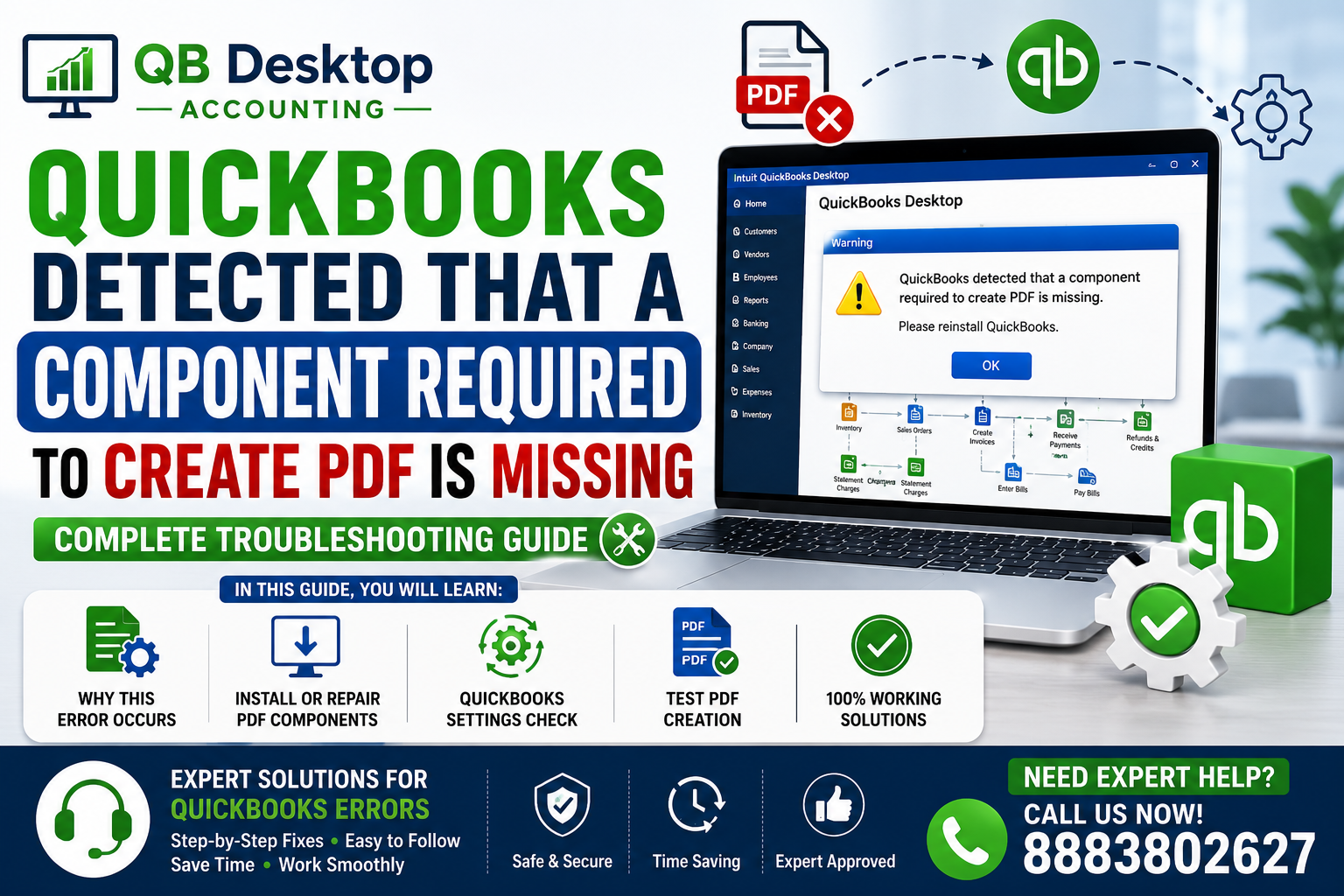
Know more about QuickBooks PDF Component Error: Complete Fix Guide
QuickBooks Desktop Keeps Crashing or Stops Responding
Sometimes there isn’t a recognizable numerical error code.
Instead, QuickBooks may:
- Freeze
- Stop responding
- Close unexpectedly
- Crash while opening a company file
- Crash when running reports
- Become unresponsive during printing
- Crash when working with a large company file
The QuickBooks Tool Hub specifically includes program troubleshooting for issues such as “QuickBooks stopped responding.”
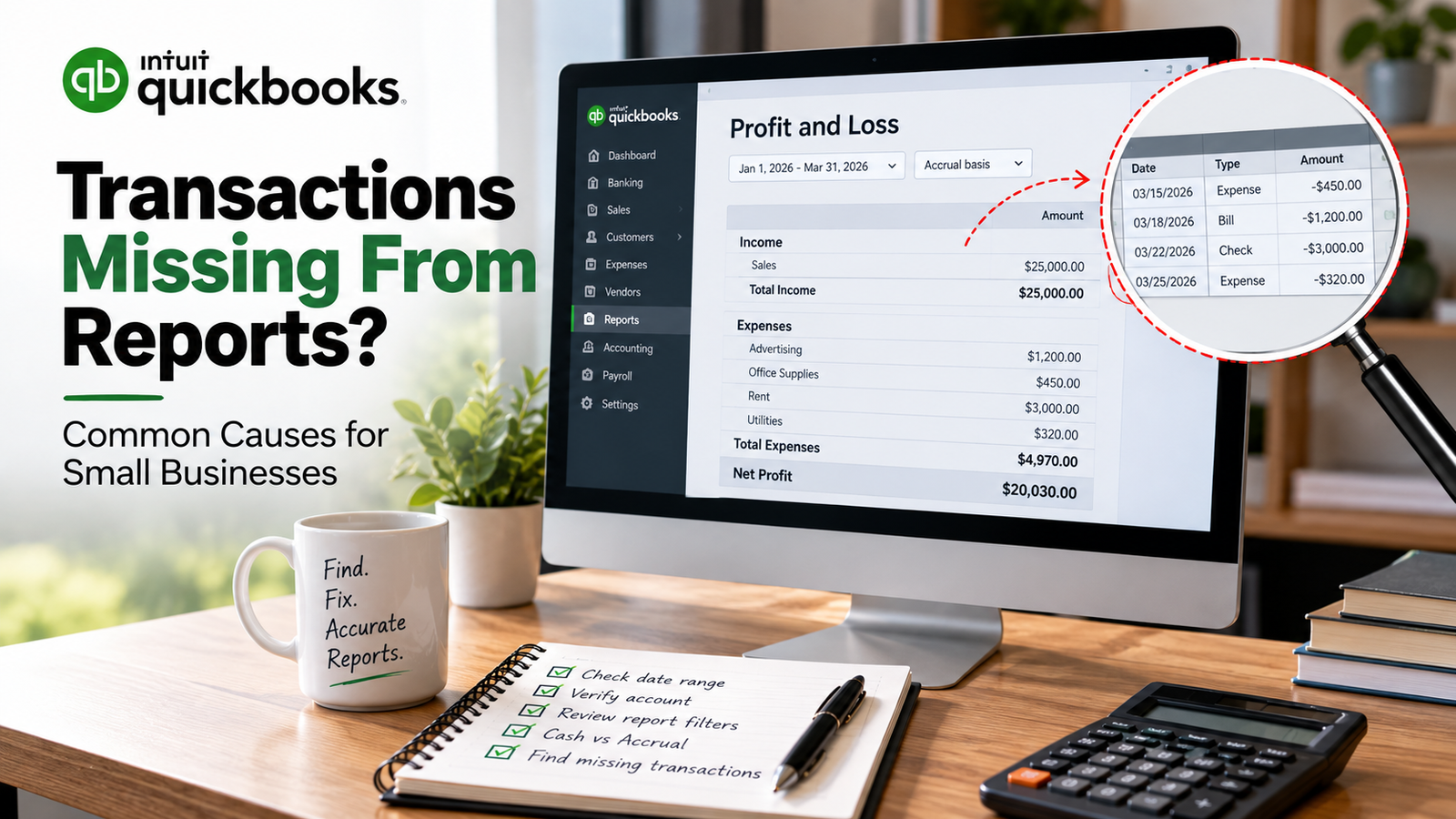
Know More about QuickBooks Keeps Crashing: How to Fix It
QuickBooks Error Troubleshooting by Problem
If you don’t know the error category, use this quick decision tree.
| What is happening? | Start here |
| QuickBooks won’t open | Program/installation troubleshooting |
| The company file won’t open | -6000 series / 6123 / company-file troubleshooting |
| Multi-user mode doesn’t work | H202/H101/H303/H505 |
| QuickBooks won’t install | 1601/1603/1642/1328 |
| QuickBooks won’t activate | 3371/license troubleshooting |
| Payroll update fails | PS-series / 12xxx connectivity errors |
| Payroll transaction is stuck | PS038 troubleshooting |
| QuickBooks update won’t download | 12xxx/update errors |
| PDF won’t generate | Program Problems/PDF troubleshooting |
| QuickBooks keeps crashing | Program/file troubleshooting |
| QuickBooks becomes unresponsive | Program Problems |
| Company file appears damaged | File Doctor/data repair |
| Company file was lost or deleted | Data recovery |
| Company file needs to move to another system | Data migration |
When QuickBooks Error Troubleshooting Does Not Work
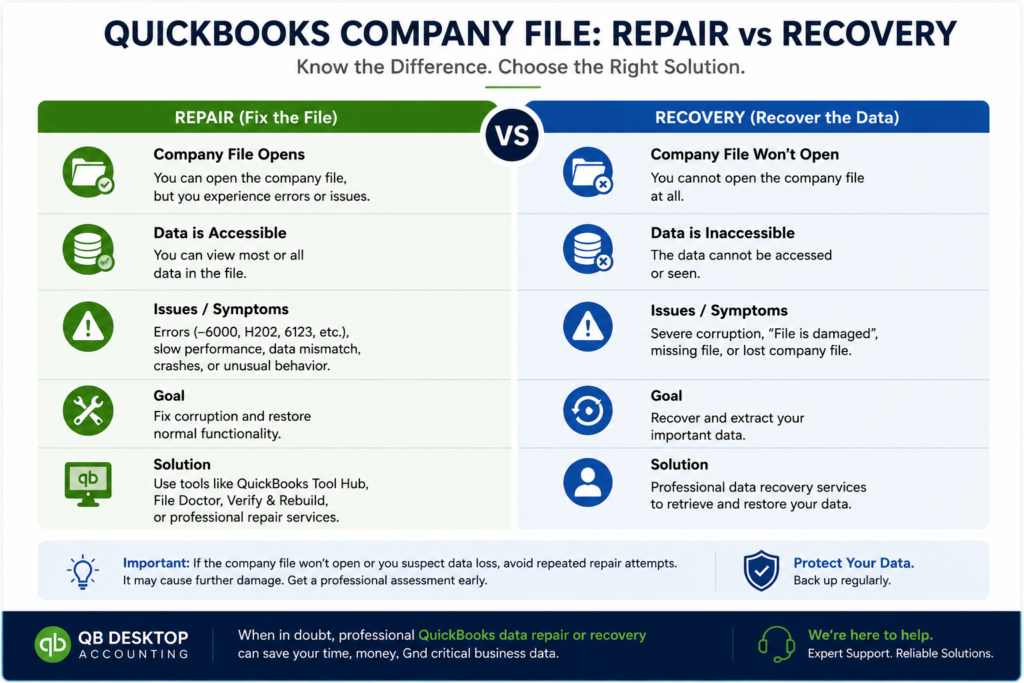
Not every QuickBooks Desktop error should be treated as a software glitch.
If you’ve already:
- Updated QuickBooks
- Checked the network
- Run the appropriate Tool Hub utility
- Tested a sample company file
- Checked permissions
- Recreated support files
- Tried the recommended repair steps
And the problem continues; the underlying issue may involve company-file corruption, damaged QuickBooks data, a failed migration, or data loss.
This is where repeatedly running repair tools can become counterproductive.
Consider Professional QuickBooks Data Repair When:
- Only one company file is affected.
- QuickBooks File Doctor cannot repair the problem.
- Rebuild Data reports additional problems.
- Transactions or balances appear incorrect.
- The company file crashes QuickBooks.
- The file opens but produces repeated data errors.
- A backup or restored file also has problems.
Check more about our Professional QuickBooks Data Repair Services
What If the QuickBooks Company File Is Lost?
Error troubleshooting and data recovery are not the same thing.
If the problem is that your QBW file has been:
- Accidentally deleted
- Lost after a computer failure
- Damaged beyond normal repair
- Missing after migration
- Unavailable after a system crash
You may need QuickBooks data recovery rather than standard error troubleshooting.
What If the Error Appeared During a Computer Upgrade?
If the issue began after moving QuickBooks Desktop to a new Windows computer, don’t automatically assume the error is a normal QuickBooks bug.
Migration can involve:
- QuickBooks installation
- Company-file transfer
- Windows permissions
- Network paths
- Supporting files
- Third-party applications
- Backup restoration
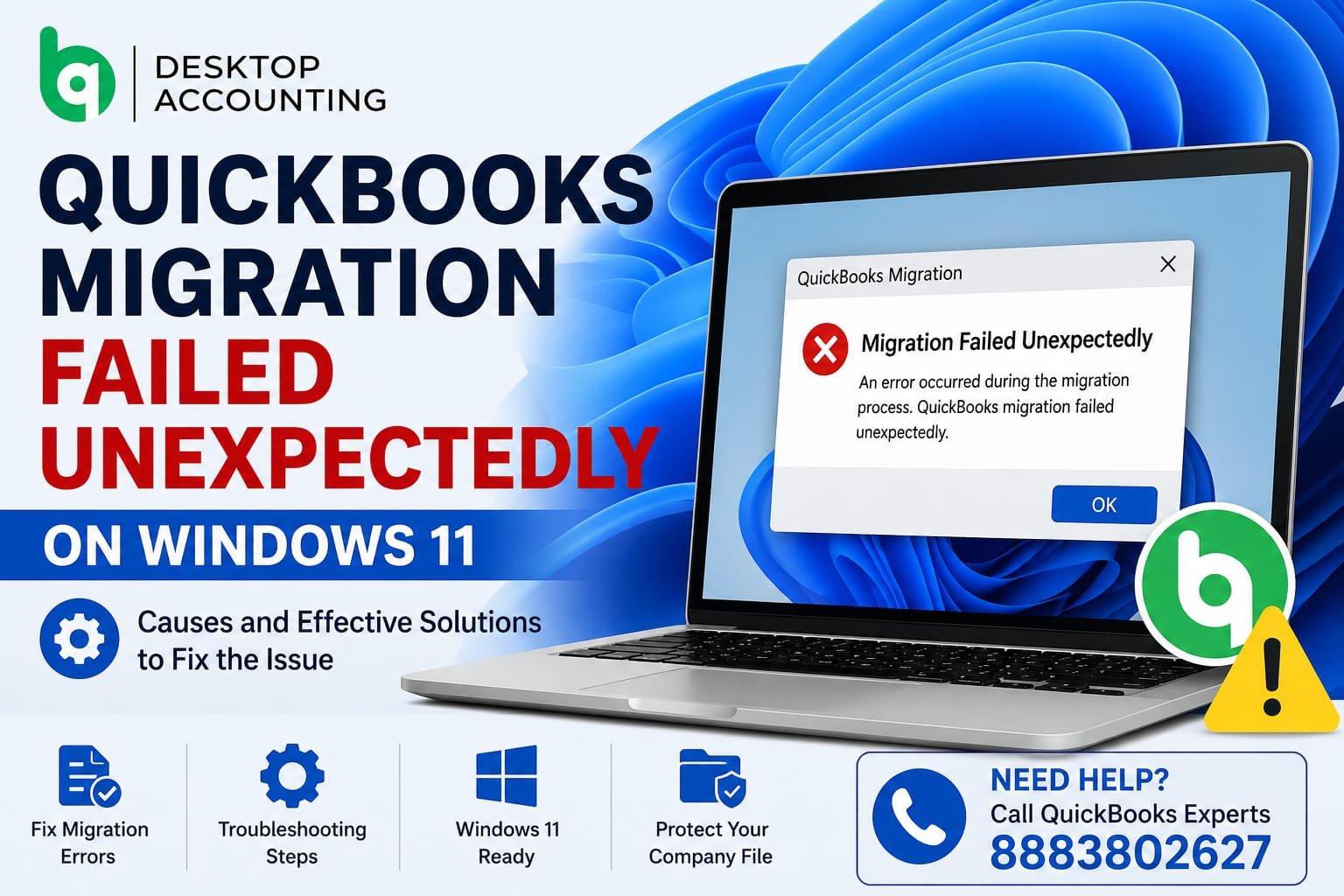
Know more about QuickBooks Migration Failed Unexpectedly on Windows 11
How to Prevent Recurring QuickBooks Desktop Errors
Troubleshooting the same error repeatedly is a sign that the underlying cause may not have been addressed.
Use these practices to reduce recurring problems.
Keep QuickBooks updated
Updates can address program and service issues, although updates themselves can sometimes create configuration problems that require troubleshooting.
Maintain regular backups
A current backup gives you a recovery option if company-file corruption occurs.
Avoid moving the company file unnecessarily
Changing file locations can create permission, network, and hosting issues.
Use appropriate multi-user hosting
If multiple employees access the same company file, make sure the server and hosting configuration are appropriate.
Monitor company-file health
Repeated crashes, unusual behavior, rebuild warnings, or transaction inconsistencies should not be ignored.
Keep Windows and security software maintained
Installation and update errors can sometimes involve Windows components, firewalls, or security applications.
QuickBooks Desktop Error Code Troubleshooting Checklist
Before escalating a QuickBooks error, work through this checklist:
- Record the complete error code.
- Record the exact error message.
- Note what you were doing when it appeared.
- Back up the company file if possible.
- Update QuickBooks Desktop.
- Restart QuickBooks and Windows.
- Test a sample company file.
- Check whether the problem affects one computer or all users.
- Run the appropriate QuickBooks Tool Hub utility.
- Check network and firewall settings for multi-user errors.
- Check Windows components for installation errors.
- Check internet/security settings for update errors.
- Run File Doctor when appropriate.
- Avoid repeated repair attempts if the company file appears seriously damaged.
- Consider professional data repair or recovery when standard troubleshooting fails.
Frequently Asked Questions About QuickBooks Desktop Error Codes
What is the most common QuickBooks Desktop error?
There is no single error that applies to every QuickBooks Desktop installation. Error frequency depends on what the user is doing. Company file access issues, multi-user connectivity errors, installation/update problems, payroll errors, and program problems each have their own common error groups.
What does a -6000 error mean in QuickBooks Desktop?
A -6000 error generally indicates that QuickBooks is having trouble opening or accessing a company file. The exact suffix, such as -6000, -301, or -6000-83, helps identify the likely cause. File location, permissions, networking, firewall configuration, damaged support files, and company-file problems can all be involved.
What does QuickBooks Error H202 mean?
H202 generally indicates a problem with the multi-user connection between a QuickBooks workstation and the computer hosting the company file. Hosting configuration, network connectivity, firewall settings and Database Server Manager can all be relevant.
What is QuickBooks Error 3371?
Error 3371 occurs when QuickBooks Desktop cannot load the required license information. Intuit recommends using the 3371 Error Fix through QuickBooks Tool Hub as an initial troubleshooting step.
How do I fix QuickBooks Error 1603?
Start with QuickBooks Tool Hub’s Installation Issues section and run the QuickBooks Install Diagnostic Tool. Also, check Windows updates and relevant Windows components if the problem continues.
What does QuickBooks Error PS038 mean?
PS038 can occur when payroll checks are stuck with an “Online to Send” status. Sending payroll data, updating QuickBooks, and, when necessary, rebuilding company data are part of the troubleshooting process.
Should I use QuickBooks File Doctor for every error?
No. File Doctor is primarily useful for certain company-file and network problems. It is not a universal solution for installation, activation, payroll, update, or every program error.
When should I stop troubleshooting a QuickBooks error myself?
Consider professional assistance when standard troubleshooting does not resolve the issue, especially if the company file appears damaged, important transactions are affected, backups fail, or the error continues after File Doctor and other appropriate tools have been used.
Can a QuickBooks error cause data loss?
An error does not automatically mean that data has been lost. However, company-file corruption, hardware failures, unsuccessful migrations, and improper repair attempts can create data risks. Always preserve a backup before performing major data-repair operations.
Where can I get help with QuickBooks Desktop errors?
For issues that require deeper troubleshooting, users can seek specialized QuickBooks Desktop support, data repair, migration, or recovery assistance depending on the underlying problem.
Final Takeaway
QuickBooks Desktop error codes are easier to troubleshoot when you classify the problem before trying random fixes.
Start by identifying whether the problem involves:
Company file → Network → Installation → Updates → Payroll → License → PDF/Printing → Program performance → Data repair/recovery
Then use the troubleshooting method appropriate to that category.
If a standard fix doesn’t work, don’t keep repeating the same repair steps. A persistent error can indicate a deeper company-file, network, installation, or data problem that requires a more targeted diagnosis.