
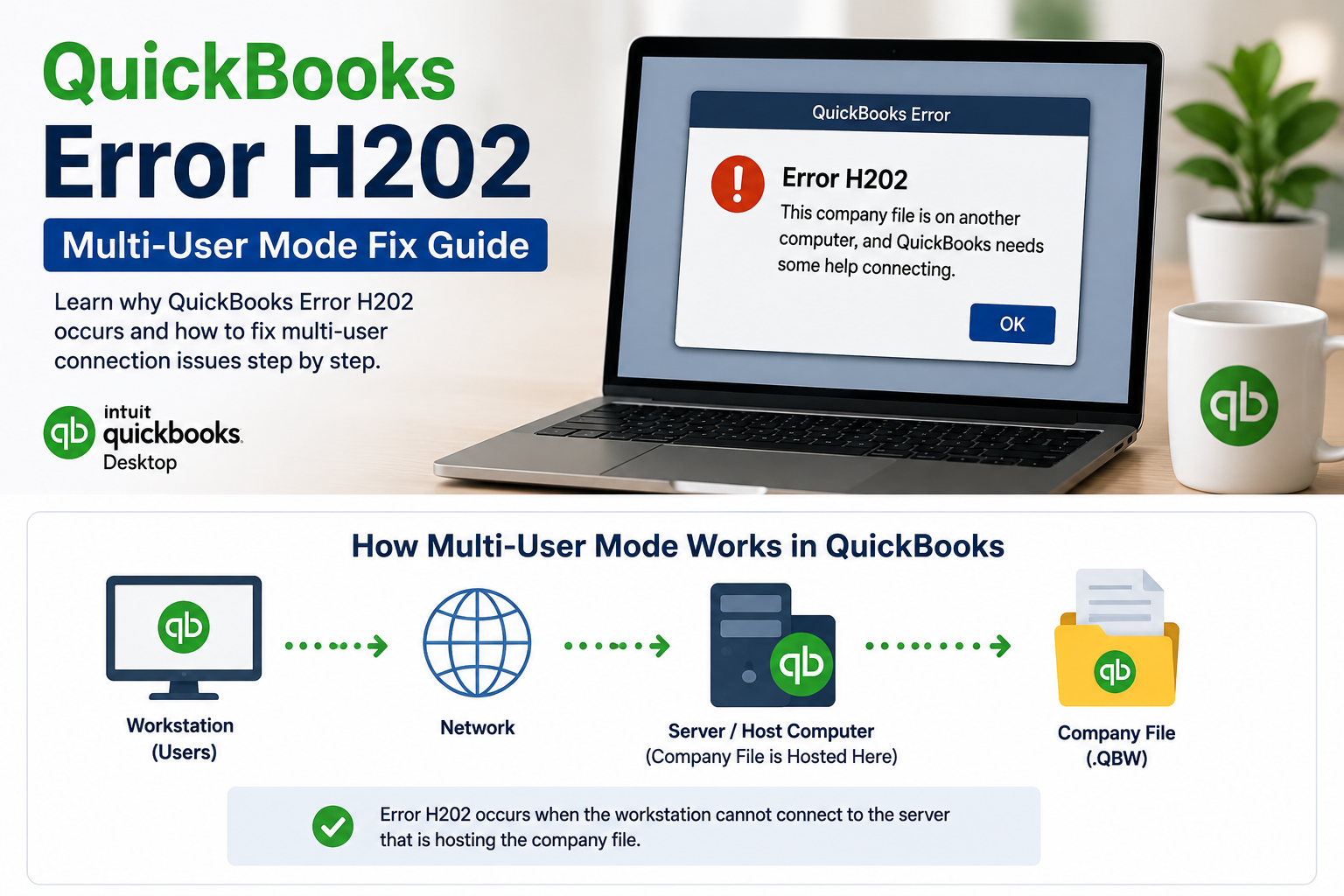

QuickBooks Error H202 usually appears when QuickBooks Desktop cannot establish the connection between a workstation and the computer hosting the company file.
The problem is most commonly encountered when you try to switch from Single-User Mode to Multi-User Mode. Instead of opening the company file for multiple users, QuickBooks displays an H202 message indicating that the multi-user connection to the server is being blocked or cannot be established.
The important thing to understand is that H202 is usually a network, hosting, or server-communication problem rather than proof that your QuickBooks company file is damaged. Intuit’s current guidance specifically describes H202 as an issue where something blocks the multi-user connection to the server.
Quick answer: Start by checking whether the correct computer is hosting the company file, then run QuickBooks Database Server Manager on the server, scan the company-file folder, run QuickBooks File Doctor in network mode, and verify that the required QuickBooks services, firewall rules, and Windows permissions are working correctly.
What Is QuickBooks Error H202?
QuickBooks Error H202 is a multi-user mode connectivity error.
It occurs when a QuickBooks Desktop workstation cannot communicate properly with the server or computer that hosts the company file.
In a normal multi-user setup:
Workstation → Network → QuickBooks server → Company file
When H202 occurs, something in that communication path is preventing QuickBooks from reaching or communicating with the company file.
The problem may involve:
- Incorrect hosting configuration
- QuickBooks Database Server Manager
- QuickBooks database services
- QBCFMonitorService
- Windows firewall
- Network connectivity
- Folder permissions
- Damaged or incorrect .ND files
- Incorrect server information
- A company file stored in an inaccessible location
Intuit groups H202 with other multi-user connection errors such as H101, H303, and H505, because these errors can occur when something prevents QuickBooks from communicating with the server.
If QuickBooks is also becoming unresponsive while attempting to load the company file, see our guide on QuickBooks not responding when opening a company file for additional troubleshooting steps.
What Does QuickBooks Error H202 Mean?
In simple terms, QuickBooks can see that the company file should be available for multi-user access, but it cannot establish the required connection to the host computer.
This is why H202 can be confusing.
You may be able to:
- Open the company file on the server
- Work in Single-User Mode
- Access other files on the network
- Use the internet normally
Yet still receive H202 when attempting Multi-User Mode.
That’s because QuickBooks requires specific services, network configuration, permissions, and hosting settings for multi-user company-file access.
H202 usually points to a connection problem
If the company file opens normally on the server but fails when accessed from a workstation, the first areas to investigate are the network and hosting environment, not the accounting data itself.
H202 does not automatically mean your company file is corrupted
A company file can be perfectly healthy while the workstation cannot connect to it.
However, if other company-file problems occur at the same time, data damage should eventually be investigated.
QuickBooks Error H202 vs. H101, H303, and H505
These errors are related but are not identical.
| Error | General meaning |
| H101 | Multi-user hosting or connection problem |
| H202 | Workstation cannot connect to the company-file server |
| H303 | Company file requires additional network configuration |
| H505 | Hosting or server connection problem |
If you are specifically receiving H202, this guide focuses on the workstation-to-server connection.
If another error is appearing, don’t automatically apply every H202 fix. Instead, identify the exact code first.
For broader QuickBooks Desktop troubleshooting, you can also refer to our QuickBooks Desktop support for small business accounting guide, which provides a wider overview of common Desktop support situations. The article is already part of the site’s existing blog cluster.
Why Does QuickBooks Error H202 Occur?
There are several possible causes.
Incorrect hosting configuration
QuickBooks Desktop needs the appropriate computer to host the company file.
If a workstation is incorrectly configured for hosting, the multi-user connection can fail.
QuickBooks Database Server Manager is missing or not configured correctly
The server uses QuickBooks Database Server Manager to manage access to company files in a multi-user environment.
If it isn’t installed, running correctly, or configured for the company-file folder, workstations may not be able to connect.
QuickBooks services are stopped
QuickBooks uses Windows services to manage company-file access.
If the required services are stopped or incorrectly configured, H202 can occur.
Firewall blocking QuickBooks
Windows Firewall or third-party security software can block QuickBooks communication between the workstation and server.
Incorrect .ND file
The Network Data .ND file contains information QuickBooks uses to communicate with the server, including server and port information.
If the .ND file is missing, damaged, or incorrect, QuickBooks may fail to connect to the company file. Intuit specifically identifies H202 among the errors that can be associated with incorrect or damaged .ND files.
Folder permission problems
The Windows user or QuickBooks services may not have sufficient access to the company-file folder.
Network connectivity problems
The workstation may not be able to reach the server correctly through the local network.
Server unavailable
If the computer hosting the company file is turned off, disconnected, or experiencing a network problem, workstations cannot access the company file.
Company file moved without updating network information
Moving a .QBW file can sometimes leave the associated network configuration out of sync.
This is particularly relevant after computer upgrades, server changes, or QuickBooks migrations.
Before Fixing QuickBooks Error H202
Before changing your network or company-file configuration, identify how your QuickBooks environment is set up.
Confirm which computer hosts the company file
Find the computer where the .QBW company file is physically stored.
That computer is generally the server or host in a self-hosted QuickBooks Desktop multi-user environment.
Check whether the server is turned on
Make sure the host computer:
- Is powered on
- Is connected to the network
- Can be accessed by the workstation
- Contains the correct company file
- Has QuickBooks Database Server Manager installed when required
Check whether other workstations are affected
This is an important diagnostic step.
If every workstation receives H202, investigate the server, hosting, firewall, and network.
If only one workstation receives H202, the issue may be isolated to that computer.
Don’t immediately rebuild the company file
Because H202 is primarily associated with multi-user connectivity, don’t assume the .QBW file needs repair simply because H202 appears.
Start with the network and hosting configuration.
How to Fix QuickBooks Error H202
The most effective approach is to work from the server outward.
Use this sequence:
Check hosting → Run Database Server Manager → Scan the company-file folder → Run File Doctor → Check services → Check firewall → Check permissions → Test network connectivity → Recheck Multi-User Mode
The steps below explain each part.
Fix 1: Check QuickBooks Hosting Settings
Incorrect hosting is one of the first things to investigate.
On the server
Open QuickBooks Desktop on the computer that stores the company file.
Go to:
File → Utilities
If you see:
Host Multi-User Access
select it if this computer is intended to host the company file.
If you see:
Stop Hosting Multi-User Access
do not select it if this is the designated host.
Intuit’s current H202 guidance specifically recommends checking the hosting configuration on the server before proceeding with additional troubleshooting.
On workstations
Open QuickBooks on the workstation.
Go to:
File → Utilities
A workstation that should not host the company file should not be configured as the host.
The goal is to have a clear hosting arrangement rather than multiple computers attempting to act as the server.
Fix 2: Run QuickBooks Database Server Manager
QuickBooks Database Server Manager is one of the most important tools for troubleshooting H202.
The server is the computer that stores your company files, while the other computers connected to it are workstations. Intuit recommends running Database Server Manager on the server when troubleshooting H202.
Open Database Server Manager
On the server:
- Open QuickBooks Tool Hub.
- Select Network Issues.
- Select QuickBooks Database Server Manager.
- If the company-file folder appears, select it.
- If it does not appear, select Browse and locate the folder.
- Select Start Scan.
The scan helps configure the network access required for the company files, and Intuit notes that Database Server Manager can repair firewall permissions during this process.
Why the scan matters
Database Server Manager creates or updates the network configuration QuickBooks uses to access the company file.
It can also help recreate missing or incorrect .ND files.
Fix 3: Run QuickBooks File Doctor in Network Mode
QuickBooks File Doctor can help identify certain company-file and network problems.
Run File Doctor
On the server:
- Open QuickBooks Tool Hub.
- Select Company File Issues.
- Select Run QuickBooks File Doctor.
- Choose the affected company file.
- Select Check your network.
- Enter your QuickBooks administrator password.
- Allow the tool to complete its scan.
Intuit’s current H202 troubleshooting flow specifically recommends File Doctor’s network-check option after running Database Server Manager.
If File Doctor does not open normally, search Windows for QuickBooks Desktop File Doctor and launch it manually.
Fix 4: Restart QuickBooks Database Services
If H202 continues, check the QuickBooks services on the server.
The two important services to investigate are:
- QuickBooksDBXX
- QBCFMonitorService
The XX represents the service version associated with your QuickBooks Desktop version.
Open Windows Services
On the server:
- Press Windows + R.
- Type services.msc.
- Press Enter.
- Locate QuickBooksDBXX.
- Open its properties.
Check the startup type
Set the service to:
Automatic
Then check the service status.
It should be:
Running
If it is stopped, select Start.
Intuit’s current manual H202 instructions also recommend configuring the service recovery options so the service can restart after failures.
Check QBCFMonitorService
Repeat the process for:
QBCFMonitorService
If either service is stopped or failing repeatedly, the workstation may not be able to establish the multi-user connection.
Fix 5: Give QuickBooks Services the Required Windows Permissions
If the services are running but H202 continues, check their Windows permissions.
Intuit’s current H202 troubleshooting guidance recommends ensuring QuickBooksDBXX and QBCFMonitorService have appropriate administrative permissions on the server.
This is particularly important when:
- The server was recently upgraded
- QuickBooks was reinstalled
- Windows permissions changed
- The company file was moved
- A new user account was created
- Security policies were recently modified
Avoid changing permissions randomly. The goal is to give the QuickBooks services the access required to manage the company-file folder and network connections.
Fix 6: Check Windows Firewall for QuickBooks H202
Firewall restrictions are a common area to investigate when QuickBooks workstations cannot communicate with the server.
Start with Database Server Manager
Running Database Server Manager and scanning the company-file folder is a useful first step because Intuit says the scan can repair firewall permissions automatically.
Check third-party security software
If you use:
- Antivirus software
- Endpoint security
- Managed firewall software
- Network security software
check whether it is blocking QuickBooks communication.
A recent security-policy change can sometimes cause H202 even when QuickBooks previously worked normally.
Don’t disable the firewall permanently
Temporarily testing whether security software is involved can be useful, but permanently turning off firewall protection is not an appropriate solution.
Configure the required QuickBooks access instead.
Fix 7: Recreate the QuickBooks .ND File
The .ND file is important in a QuickBooks Desktop multi-user environment.
It stores network-related information QuickBooks uses to communicate with the server, including server and port information.
If the .ND file is damaged or incorrect, H202 can occur.
Find the .ND file
Open the folder containing the company file.
Look for a file associated with the company file ending in:
.ND
For example:
MyCompanyFile.qbw.nd
Rename the .ND file
Close QuickBooks.
Rename the .ND file by adding:
.OLD
For example:
MyCompanyFile.qbw.nd.OLD
Do not delete the .QBW company file.
Rescan the folder
Open QuickBooks Database Server Manager and scan the company-file folder again.
Intuit’s current .ND guidance recommends renaming or removing incorrect .ND files and then using Database Server Manager to rescan the folder so new network configuration files can be created.
Fix 8: Check the Company-File Folder Permissions
QuickBooks needs appropriate access to the folder where the company file is stored.
Check that the folder:
- Exists on the server
- Contains the correct .QBW file
- Is shared appropriately
- Can be accessed by the required users
- Allows the QuickBooks services to access it
If the folder was recently moved, renamed, or copied, verify that the Database Server Manager is scanning the new location.
Fix 9: Check Whether the Workstation Can Reach the Server
If the server configuration appears correct, investigate the network connection.
From the affected workstation, check whether you can reach the server using its:
- Computer name
- Network path
- IP address
If the workstation cannot reach the server at all, the problem is broader than QuickBooks.
Investigate:
- Network connection
- DNS
- Windows network discovery
- Server availability
- Router configuration
- VPN
- Firewall
- Network segmentation
If the workstation can access the server normally but QuickBooks still displays H202, focus on QuickBooks hosting, Database Server Manager, .ND files, services, and firewall rules.
Fix 10: Restart the Server and Workstation
If you have already corrected the configuration, restart the affected systems.
A restart can reload:
- QuickBooks services
- Windows firewall rules
- Network configuration
- Database Server Manager components
- Security policies
After restarting, open QuickBooks on the workstation and select:
File → Switch to Multi-User Mode
If the company file opens normally, the H202 error has been resolved.
Fix 11: Test Multi-User Mode From Another Workstation
This is another useful diagnostic step.
Try opening the same company file from another workstation.
If another workstation works
The problem may be isolated to the original workstation.
Investigate:
- Local firewall
- QuickBooks installation
- Network configuration
- .ND file
- Windows permissions
- Local QuickBooks services
If every workstation fails
Focus on:
- Server
- Database Server Manager
- Hosting
- Firewall
- QuickBooks services
- Folder permissions
- Network connectivity
This distinction can save significant troubleshooting time.
Fix 12: Use QuickBooks Tool Hub for H202
QuickBooks Tool Hub brings several troubleshooting utilities together.
For H202, the most relevant areas are:
Network Issues
and:
Company File Issues
The Network Issues section is used for tools such as QuickBooks Database Server Manager, while Company File Issues includes File Doctor. Intuit’s current Tool Hub documentation specifically identifies H202 as a network problem that these tools can help troubleshoot.
If you don’t already have Tool Hub installed, install the current version from Intuit and run it on the appropriate computer.
QuickBooks Error H202 When Only One User Is Affected
If everyone else can open the company file in multi-user mode but one workstation receives H202, don’t immediately change the server configuration.
The problem may be local to that workstation.
Check the workstation’s network connection
Confirm that the computer can reach the server.
Check its firewall
A local firewall can block QuickBooks even when other computers work normally.
Check the local QuickBooks installation
If QuickBooks is damaged or incorrectly configured, repairing the program may help.
Test another company file
If another company file hosted on the same server opens successfully, the problem may be related to the affected company file or its network configuration.
QuickBooks Error H202 on Every Workstation
If all workstations receive H202, the server should be your first focus.
Check:
- Server availability
- Hosting configuration
- QuickBooks Database Server Manager
- Company-file folder scan
- QuickBooksDBXX
- QBCFMonitorService
- Firewall
- Windows permissions
- Network connectivity
- .ND files
If the server was recently restarted, upgraded, renamed, or moved, pay particular attention to Database Server Manager and network configuration.
QuickBooks Error H202 After a Server Change
H202 commonly becomes more noticeable after changes to the QuickBooks environment.
Examples include:
- Replacing the server
- Changing the server name
- Moving the company file
- Installing a new QuickBooks version
- Updating Windows
- Changing firewall rules
- Changing network configuration
- Migrating QuickBooks to another computer
If the error appeared immediately after moving QuickBooks or company data to another system, review the QuickBooks migration troubleshooting article on the site before assuming the company file is corrupted.
If the entire QuickBooks environment needs to be moved, the QuickBooks data migration service is also a relevant commercial option, particularly when multiple company files and network settings are involved.
QuickBooks H202 and the .ND File: What You Need to Know
The .ND file is often misunderstood.
It is not your accounting data.
The .ND file is a Network Data file used by QuickBooks Desktop to identify and communicate with the database server.
It can contain information such as:
- Server information
- IP address
- Port information
- Company-file path
- Hosting information
Intuit confirms that an incorrect, missing, or damaged .ND file can prevent a company file from opening in a network or multi-user environment and can contribute to errors including H202.
That’s why renaming an .ND file is generally much less concerning than modifying the actual .QBW company file.
Is QuickBooks Error H202 a Company-File Corruption Error?
Usually, no.
H202 primarily indicates a problem with the multi-user connection.
If:
- The company file opens normally on the server
- Single-user mode works
- Other accounting functions work
- The error occurs only when switching to multi-user mode
then network or hosting configuration should generally be investigated first.
However, if the company file also fails locally, crashes, produces data errors, or behaves abnormally in Single-User Mode, the problem may involve the company file itself.
In that situation, a QuickBooks data repair service can be considered after the network issue has been ruled out.
When QuickBooks Error H202 Requires Professional Help
You may need professional assistance when:
- H202 continues after Database Server Manager troubleshooting
- QuickBooks services repeatedly stop
- Firewall rules are complex
- The server has multiple QuickBooks versions
- The company file has also developed data errors
- The network was recently migrated
- Multiple company files are affected
- The server configuration is complicated
- The company file is damaged as well as inaccessible
For general QuickBooks Desktop troubleshooting and multi-user configuration issues, QuickBooks Desktop support can be useful when the problem extends beyond a single H202 setting.
If diagnostics indicate that the company file itself is damaged rather than simply unreachable, QuickBooks data repair services may be more appropriate.
How to Prevent QuickBooks Error H202
Once you’ve fixed H202, a few maintenance practices can reduce the likelihood of the error returning.
Keep QuickBooks updated
Use the appropriate current updates for the QuickBooks Desktop versions installed in your environment.
Keep Database Server Manager configured
Make sure the company-file folders remain correctly configured after QuickBooks or Windows updates.
Avoid unnecessary company-file moves
Don’t repeatedly move .QBW files between computers and network locations.
Keep hosting consistent
Clearly designate which computer hosts the company files.
Monitor firewall changes
Document firewall and security changes that could affect QuickBooks communication.
Maintain backups
Keep reliable backups of your QuickBooks company files in case a network problem is accompanied by a separate file or system failure.
Document your server configuration
For businesses with several QuickBooks users, document:
- Server name
- Company-file locations
- QuickBooks versions
- Database Server Manager configuration
- Firewall configuration
- User permissions
This makes future troubleshooting significantly easier.
QuickBooks Error H202 Troubleshooting Checklist
Use this checklist when H202 appears:
- Confirm the exact H202 message.
- Identify the computer hosting the company file.
- Confirm the server is turned on.
- Check the server’s network connection.
- Check hosting settings.
- Confirm Database Server Manager is installed.
- Run Database Server Manager on the server.
- Scan the company-file folder.
- Run File Doctor in network mode.
- Check QuickBooksDBXX.
- Check QBCFMonitorService.
- Set required services to start automatically.
- Check service recovery settings.
- Check Windows permissions.
- Check firewall rules.
- Check third-party security software.
- Recreate the .ND file if necessary.
- Test the server from the affected workstation.
- Test another workstation.
- Restart the server and workstation.
- Try Multi-User Mode again.
- Investigate company-file damage only if network troubleshooting does not explain the problem.
Frequently Asked Questions About QuickBooks Error H202
What is QuickBooks Error H202?
QuickBooks Error H202 is a multi-user mode connection error that occurs when a workstation cannot establish the required connection to the computer hosting the QuickBooks company file.
Why does QuickBooks show H202 when switching to multi-user mode?
H202 usually appears because something is blocking or disrupting communication between the workstation and the server. Common areas include hosting, Database Server Manager, QuickBooks services, firewall settings, network connectivity, permissions, and .ND files.
Is QuickBooks H202 caused by a damaged company file?
Not necessarily. H202 primarily indicates a multi-user connectivity problem. If the company file opens normally in Single-User Mode, investigate the network and hosting configuration first.
How do I fix QuickBooks H202 quickly?
Start by checking hosting, running QuickBooks Database Server Manager on the server, scanning the company-file folder, and running File Doctor with the network option. Then check QuickBooks services, firewall settings, permissions, and network connectivity.
Should I run QuickBooks Database Server Manager on the workstation?
For a self-hosted multi-user environment, Database Server Manager should be run on the server computer that stores the company file. Intuit’s current H202 instructions specifically direct users to run it on the server.
What QuickBooks services should I check for H202?
Check QuickBooksDBXX and QBCFMonitorService on the server. Their exact QuickBooksDBXX number depends on your QuickBooks Desktop version.
Can a firewall cause QuickBooks Error H202?
Yes. A firewall can block the communication required between the workstation and the server. Running Database Server Manager and scanning the company-file folder is one of the recommended troubleshooting steps.
What is the .ND file in QuickBooks?
The .ND file is a Network Data configuration file that helps QuickBooks Desktop communicate with the server in a network or multi-user environment. Incorrect or damaged .ND files can contribute to H202 and related errors.
Can I delete the .ND file to fix H202?
Rather than permanently deleting it, rename the .ND file by adding .OLD, then rescan the company-file folder using Database Server Manager so QuickBooks can recreate the required network configuration.
Why does H202 affect one computer but not another?
If other workstations can access the company file, the problem may be isolated to the affected computer. Check its firewall, network connection, QuickBooks installation, and local configuration before changing the server.
Why does every workstation get H202?
If every workstation receives H202, investigate the server, Database Server Manager, hosting, QuickBooks services, firewall, permissions, and network connection first.
Can restarting the server fix H202?
It can sometimes restore stopped services or temporary network problems, but restarting alone does not fix an underlying hosting, firewall, permission, or Database Server Manager configuration problem.
Does QuickBooks H202 mean I need data recovery?
Usually not. H202 is primarily a multi-user connectivity error. Data recovery becomes relevant when the company file or accounting data is actually missing, lost, or unrecoverable.
What should I do if H202 keeps coming back?
If H202 repeatedly returns after correcting hosting, Database Server Manager, services, firewall, permissions, and network configuration, the environment may need a deeper technical review. If the company file also shows signs of corruption, consider professional company-file repair.
Final Takeaway
QuickBooks Error H202 usually means the workstation cannot establish a proper multi-user connection to the computer hosting the company file.
The error doesn’t automatically mean your accounting data is damaged.
The most effective troubleshooting sequence is:
Check hosting → Run Database Server Manager → Scan the company-file folder → Run File Doctor → Check QuickBooks services → Check permissions → Check firewall → Check network connectivity → Recreate the .ND file if necessary → Test Multi-User Mode
If the problem affects only one workstation, investigate that computer first.
If every workstation is affected, focus on the server and network environment.
And if H202 continues even after the network configuration has been verified or if the company file also shows signs of actual corruption, then move beyond basic troubleshooting and consider professional QuickBooks technical or data-repair assistance.