

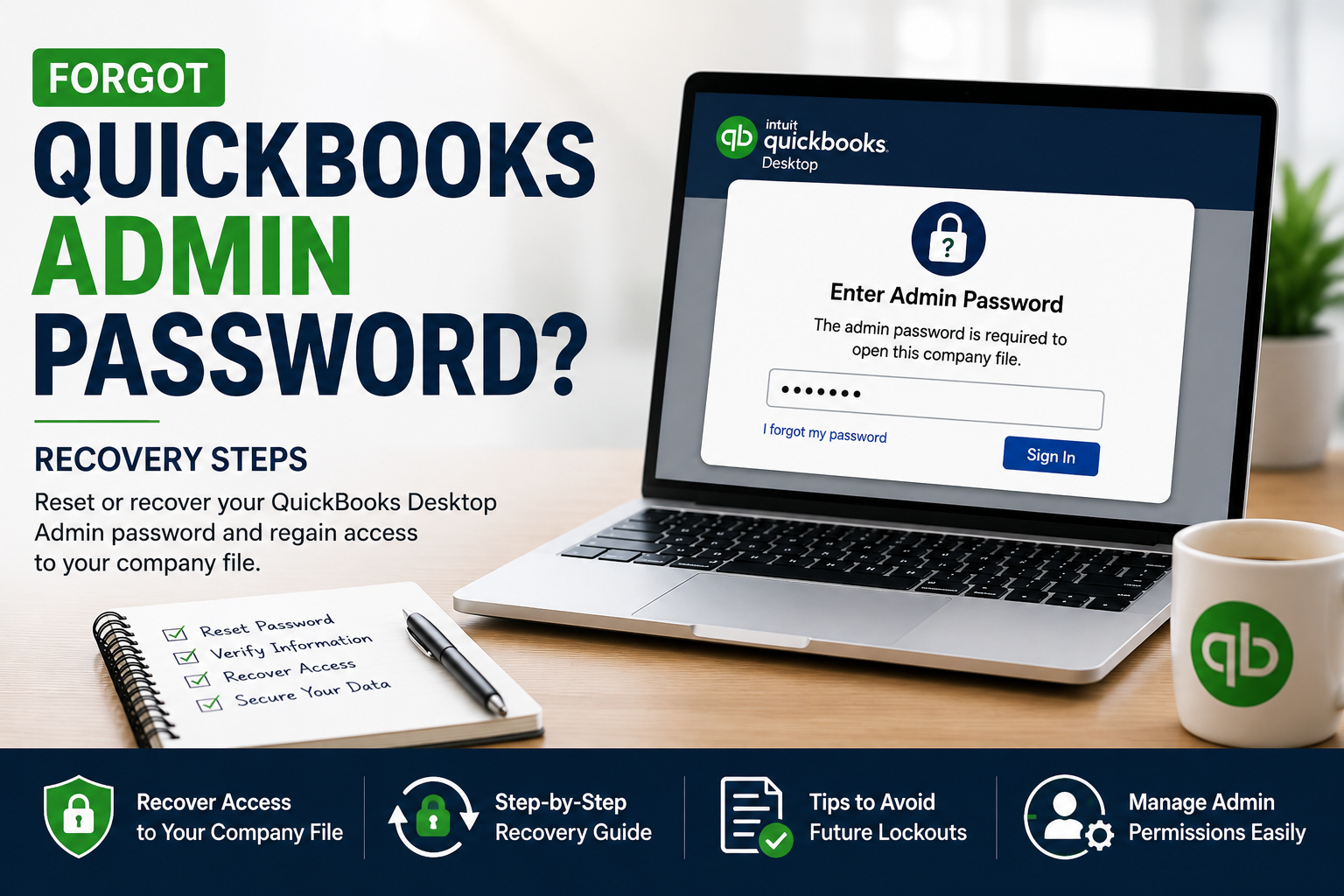

Forgetting the QuickBooks Desktop Admin password can prevent you from opening or managing a company file, especially when you need access to administrative settings, users, or accounting data.
Fortunately, forgetting the password does not necessarily mean that the company file is lost or damaged. QuickBooks Desktop provides password-recovery options, but the correct process depends on the type of password you forgot and the QuickBooks version you use.
The first step is to determine whether you forgot the QuickBooks Admin password for the company file or the password for a specific QuickBooks user.
Quick answer: If you forgot the QuickBooks Desktop Admin password, open the company file, select the password-recovery option, provide the requested company and contact information, and follow the verification process. If the automatic recovery process does not work, verify the information carefully and use the appropriate QuickBooks password-recovery or support process for your version.
What Is the QuickBooks Admin Password?
The QuickBooks Admin password protects the Admin user of a QuickBooks Desktop company file.
The Admin account has broader permissions than regular QuickBooks users and is commonly used to:
- Manage QuickBooks users
- Add or remove users
- Change user permissions
- Access sensitive company-file settings
- Perform certain accounting and administrative tasks
- Manage areas of the company file restricted to administrators
The Admin password is associated with the company file, so changing or recovering it is different from resetting a Windows password or your Intuit Account password.
QuickBooks Admin Password vs. Intuit Account Password
These passwords are easy to confuse.
QuickBooks Desktop Admin password
This password is used to access the Admin user inside a QuickBooks Desktop company file.
Intuit Account password
Your Intuit Account credentials are used for services connected to your Intuit account.
Changing your Intuit Account password does not necessarily change the Admin password protecting a QuickBooks Desktop company file.
Windows password
Your Windows login protects access to the computer.
It is also separate from the QuickBooks Admin password.
Therefore, before attempting recovery, determine exactly which password QuickBooks is requesting.
How to Tell If You Forgot the QuickBooks Admin Password
You may have forgotten the Admin password if QuickBooks:
- Opens the company-file login screen
- Shows Admin as the user
- Requests a password before opening the company file
- Rejects the password you normally use
- Allows other users to log in but prevents Admin access
- Prevents you from accessing administrative functions
If another QuickBooks user can still access the company file, do not assume that their password can be used to replace the Admin credentials.
The Admin account is separate from other QuickBooks users.
Before Resetting Your QuickBooks Admin Password
Before starting recovery, gather the information associated with the company file.
Depending on your QuickBooks version and recovery process, you may need information such as:
- Company name
- Business information
- Email address
- Phone number
- QuickBooks license or product information
- Company-file details
- Information associated with the QuickBooks account
Use the information that was originally associated with the QuickBooks setup whenever possible.
A mismatch between the information you enter and the information associated with the company can prevent automatic password recovery from succeeding.
How to Reset a Forgotten QuickBooks Admin Password
The exact screens can vary by QuickBooks Desktop version, but the general recovery process follows the same pattern.
1. Open the QuickBooks company file
Start QuickBooks Desktop.
Open the company file that requires the Admin password.
When the login screen appears, select the Admin user if it is not already selected.
2. Select the password-recovery option
Look for an option such as:
I forgot my password
or the available password-reset/recovery option on the login screen.
Select it to begin the recovery process.
3. Enter the requested verification information
QuickBooks may ask for information associated with the company file.
Enter the information carefully.
Pay particular attention to:
- Email address
- Phone number
- Company information
- License information
- Other requested verification details
Even a small mismatch can prevent the recovery process from validating your information.
4. Complete the verification process
Follow the instructions displayed by QuickBooks.
If the recovery process successfully verifies your information, you should be able to create a new password.
5. Create a new Admin password
Choose a strong password that you can securely retain.
Avoid using:
- Your company name
- Simple number sequences
- Easily guessed words
- Passwords used for other accounts
6. Log in again
Close and reopen the company file if necessary.
Select Admin and enter the new password.
If the new password works, confirm that you can access the administrative functions you need.
What If QuickBooks Won’t Let You Reset the Admin Password?
A failed password reset does not necessarily mean the company file is damaged.
First, verify the information you entered.
Check your company information
Make sure the information matches the information associated with your QuickBooks registration and company file.
Check your email address
If the recovery process uses an email address, verify that you’re using the address associated with the QuickBooks setup.
Check spam and junk folders if a recovery email is expected.
Check the QuickBooks version
Password-recovery behavior can vary between QuickBooks Desktop versions.
Make sure you’re following the instructions appropriate for your installed version.
Restart QuickBooks
Close QuickBooks completely and reopen it.
Then attempt the password-recovery process again.
Don’t repeatedly guess the password
Repeatedly entering random passwords is unlikely to solve the problem and can make troubleshooting more confusing.
Instead, use the official recovery process.
How to Reset the QuickBooks Admin Password When Another User Can Log In
If another QuickBooks user can access the company file, your options may depend on that user’s permissions.
A standard user should not automatically be assumed to have the ability to change the Admin credentials.
If an existing user has appropriate administrative permissions, review:
Company → Users → Set Up Users and Roles
The exact menu wording can vary by QuickBooks Desktop version.
If the existing user cannot change the Admin password, return to the dedicated password-recovery process rather than attempting to modify company files manually.
What If You Forgot a Regular QuickBooks User Password?
The recovery process can be different when you forgot the password for a non-Admin user.
The Admin user has broader permissions and can manage QuickBooks users and their access.
If you can successfully log in as Admin, review the user-management settings and determine whether the affected user’s password or access needs to be reset.
This is different from forgetting the Admin password itself.
Forgot QuickBooks Admin Password but Still Have the Company File
Having the .QBW company file is important, but possession of the file does not mean that you should bypass its authentication.
The company file contains accounting information and user-access settings.
If you still have the file but cannot authenticate as Admin:
- Make a backup or preserve the original file.
- Identify your QuickBooks Desktop version.
- Use the built-in password-recovery process.
- Verify the company information requested by QuickBooks.
- Follow the recovery instructions.
- Contact appropriate QuickBooks support if the recovery process fails.
Avoid downloading unofficial password-removal utilities or modifying company-file database structures.
Forgot QuickBooks Admin Password After Moving to a New Computer
A password problem that appears after migrating QuickBooks to a new computer can be confused with a migration problem.
The .QBW company file contains the company data and user configuration, so moving the file to another computer does not mean you should create a new company file simply because the Admin password is unavailable.
First, verify that you are opening the correct company file.
Then:
- Confirm the file name.
- Confirm the company name displayed by QuickBooks.
- Verify your QuickBooks version.
- Try the normal Admin password.
- Use the password-recovery process if necessary.
If the password issue appeared as part of a larger computer or company-file migration, the site’s QuickBooks migration troubleshooting article can provide additional context for problems that occur after moving QuickBooks or company data.
If you are planning a larger migration involving multiple company files, the QuickBooks data migration service is also a relevant option rather than manually moving files without verifying the complete environment.
What If QuickBooks Says the Company File Is Damaged?
A forgotten Admin password and a damaged company file are two different problems.
If QuickBooks displays the normal password screen and rejects your password, don’t immediately assume that the .QBW file is corrupted.
However, if QuickBooks also:
- Crashes
- Won’t open the company file
- Displays data-related errors
- Reports corruption
- Fails when opening the file on multiple computers
then there may be a separate company-file problem.
If you are experiencing both authentication and company-file access problems, troubleshoot the password issue separately from the data issue.
For broader company-file problems, professional QuickBooks data repair services may be appropriate if standard troubleshooting confirms that the file itself is damaged.
Can You Recover a QuickBooks Admin Password From the Company File?
You should not attempt to extract or bypass the Admin password by manually editing the QuickBooks company-file database.
The safer approach is to use QuickBooks’ supported password-recovery process.
Avoid:
- Hex editors
- Database password-removal utilities
- Unverified third-party password crackers
- Editing .QBW internals
- Deleting user-related database records
- Downloading unknown password-reset software
These approaches can damage the company file and potentially create a much larger accounting-data problem.
What If the QuickBooks Password Recovery Tool Fails?
If the recovery process fails, work through the following checks.
Verify the information
Review every field carefully.
A company email address that is different from the one originally associated with the QuickBooks setup may cause verification problems.
Verify the company file
Make sure you’re opening the correct .QBW file.
Businesses sometimes have multiple files with similar names, such as:
- Company.qbw
- Company-old.qbw
- Company-backup.qbw
- Company-2025.qbw
Opening a different company file can lead to confusion about which password is required.
Verify the QuickBooks version
Check the exact QuickBooks Desktop version and year.
This matters because recovery procedures can differ between releases.
Preserve the original file
Before attempting extensive troubleshooting, make a copy of the company file.
Do not experiment with the original .QBW file using unknown repair or password utilities.
Escalate when necessary
If supported password recovery does not work, professional QuickBooks technical assistance may be appropriate.
How to Avoid Losing Access to the QuickBooks Admin Account
Once you recover access, take steps to prevent the problem from happening again.
Store the password securely
Use a reputable password manager or another secure method of storing business credentials.
Keep recovery information current
Make sure the contact information associated with your QuickBooks setup remains accessible.
Limit Admin access
Only trusted people should have access to the QuickBooks Admin credentials.
Maintain current backups
A backup does not replace your password, but it protects against separate company-file problems.
Document your QuickBooks environment
For businesses with several users, document:
- QuickBooks Desktop version
- Company-file location
- Admin contact
- Authorized QuickBooks users
- Server information
- Backup location
This can make future troubleshooting significantly easier.
Forgot QuickBooks Admin Password: Common Scenarios
| Situation | Recommended starting point |
| Forgot Admin password | Use QuickBooks password recovery |
| Forgot a regular user’s password | Log in as Admin and manage the user |
| Recovery information rejected | Verify company/contact information |
| Can’t identify the correct company file | Confirm the .QBW file and company name |
| Password issue appeared after migration | Verify the correct company file and QuickBooks version |
| Company file also crashes | Investigate a separate company-file problem |
| File opens but Admin access is unavailable | Continue supported password recovery |
| Password recovery repeatedly fails | Seek appropriate QuickBooks technical assistance |
| Company file appears damaged | Investigate data repair separately |
| Company file is missing | Investigate data recovery rather than password recovery |
Is the QuickBooks Admin Password the Same as the Windows Password?
No.
The Windows password controls access to your Windows user account.
The QuickBooks Admin password protects the Admin user within the QuickBooks company file.
Changing your Windows password does not automatically change the QuickBooks Admin password.
Is the QuickBooks Admin Password the Same as the Intuit Account Password?
Not necessarily.
The QuickBooks Desktop Admin password and your Intuit Account credentials serve different purposes.
If QuickBooks is asking for the Admin password while opening a company file, use the password associated with the QuickBooks company-file Admin user rather than assuming your Intuit Account password will work.
Can I Open the Company File Without the Admin Password?
If the company file requires Admin authentication, you should use the supported login and password-recovery process.
Do not attempt to bypass the authentication by modifying the company file manually.
If another authorized QuickBooks user has access, that user may be able to perform certain tasks, but Admin-only functions may still require Admin access.
What Happens to My Accounting Data When I Reset the Admin Password?
Resetting the Admin password is intended to change the authentication credentials for the user.
It does not mean that your accounting transactions should be deleted or recreated.
However, always preserve a current backup before making significant changes to your accounting environment.
What If I Have Multiple QuickBooks Company Files?
Each company file can have its own users and Admin credentials.
Do not assume that the Admin password for one company file will automatically work for another.
If you manage several businesses or company files, identify the exact .QBW file you are trying to open before starting recovery.
When Should You Contact QuickBooks Support?
Consider getting professional assistance if:
- The supported password-recovery process fails repeatedly.
- You cannot verify the required company information.
- You don’t know which company file is the correct one.
- The company file also produces errors or crashes.
- The password problem started during a migration.
- Multiple company files are affected.
- The company file is damaged or inaccessible.
For general Desktop troubleshooting, QuickBooks Desktop support can help determine whether you’re dealing with a password, program, company-file, or migration issue.
If the company file is actually damaged, QuickBooks data repair services are a separate solution and should not be used simply because a password has been forgotten.
Frequently Asked Questions About Forgotten QuickBooks Admin Passwords
How do I reset a forgotten QuickBooks Admin password?
Open the QuickBooks company file, select the Admin user, choose the available password-recovery option, provide the requested verification information, and follow the instructions to create a new password.
Can I reset my QuickBooks Admin password without the old password?
If you have forgotten the existing password, use the supported QuickBooks password-recovery process rather than attempting to bypass the authentication manually.
Why isn’t my QuickBooks password reset working?
The recovery process may fail if the company or contact information you provide doesn’t match the information associated with the QuickBooks setup. Also verify that you’re working with the correct company file and QuickBooks version.
Is my QuickBooks Admin password the same as my Intuit password?
No. The QuickBooks Desktop Admin password protects the Admin user within the company file, while your Intuit Account credentials are used for Intuit account-related services.
Is my QuickBooks Admin password the same as my Windows password?
No. Your Windows password protects your Windows account, while the QuickBooks Admin password protects the Admin user in the QuickBooks company file.
Can I recover the password directly from the .QBW file?
You should not attempt to extract or bypass the password by manually editing the .QBW file. Use the supported QuickBooks recovery process.
Will resetting the Admin password delete my QuickBooks transactions?
Resetting the Admin credentials is not intended to delete your accounting transactions. Nevertheless, maintain a current backup of your company file before performing significant troubleshooting.
What if another QuickBooks user can still log in?
If another authorized user can access the company file, their available permissions may allow them to manage certain user settings. However, that does not necessarily replace the Admin credentials.
What if I forgot the Admin password after moving QuickBooks to a new computer?
First confirm that you copied and opened the correct .QBW company file and that the QuickBooks version is appropriate. Then use the supported Admin password-recovery process.
What if QuickBooks says the company file is damaged?
Treat that as a separate issue from the forgotten password. If the file also crashes, fails to open, or reports data problems, investigate company-file damage independently.
Should I download a QuickBooks password cracker?
No. Avoid unofficial password crackers or utilities that modify the QuickBooks company file. They can introduce security and data-integrity risks.
Can QuickBooks support help if the password recovery fails?
If supported recovery does not work, appropriate QuickBooks support can help determine what recovery options are available for your specific version and situation.
Final Takeaway
Forgetting your QuickBooks Desktop Admin password can be frustrating, but it does not automatically mean that your accounting data is lost.
Start by identifying the exact password QuickBooks is requesting and confirm that you’re opening the correct company file.
Then use the supported password-recovery process:
Open company file → Select Admin → Choose password recovery → Verify your information → Create a new password → Sign in again
If recovery fails, don’t attempt to modify the .QBW file or use an unverified password-removal utility.
Instead, verify your company information, QuickBooks version, and company-file identity, then seek appropriate technical assistance if necessary.
And if the company file is also crashing, refusing to open, or showing signs of corruption, treat that as a separate company-file problem rather than assuming the forgotten password caused it.