
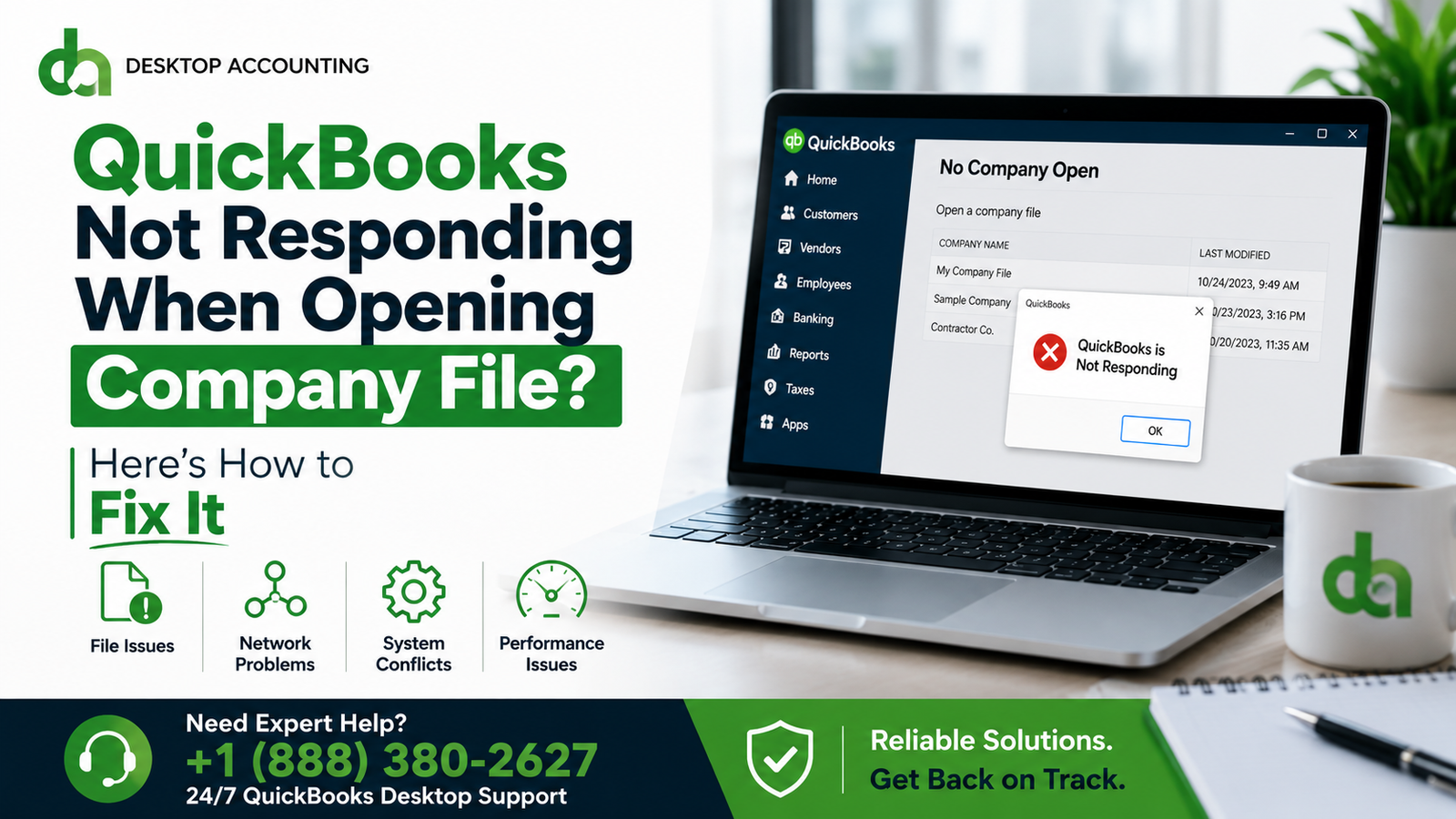

For small business owners, wasting hours troubleshooting accounting software is not usually a great option. When the QuickBooks Not Responding When Opening Company File error occurs, it brings daily business operations to an immediate stop. If QuickBooks keeps not responding, you are left staring at a frozen screen or a spinning wheel instead of your financial dashboard.
This issue points to a critical communication breakdown between the QuickBooks application and the database file. A laggy connection can cause the software to time out and freeze.
To help you skip the frustration, we’ve put together 15 practical, step-by-step fixes to resolve this glitch and get your software running again.
Before you start: If you suspect your data is severely corrupted, or you’re worried that troubleshooting might make things worse, it’s always safest to call in backup. Click here to connect with a QuickBooks expert right now for immediate, professional help.
Why Is QuickBooks Not Responding When Opening Company File?
The software usually freezes due to one of three main backend system failures.
Damaged or Corrupted Company File
- Company File Corruption: Sudden power outages, system crashes, or shutting down a PC while saving can corrupt the structural database code of your .QBW file.
- Large Company File: If a company file grows too large over years of operation, the application may run out of memory trying to process it, causing QuickBooks company file issues.
Network Connectivity Problems
- Multi-User Environment Issues: If your file is hosted on an office server, a weak or dropping connection from your local workstation immediately causes the software to hang.
- Network Interruptions: Brief drops in your local Wi-Fi or Ethernet connection break the live data stream and freeze QuickBooks completely.
Corrupted QuickBooks Installation
- Damaged Program Files: Aggressive antivirus software can accidentally delete or modify core software files.
- Missing Windows Components: QuickBooks relies heavily on external Microsoft components like .NET Framework, MSXML, and C++ and fails to launch if these elements break.
Common Signs of This Problem
Here are a few common signs to look for:
QuickBooks Freezes During Startup
This indicator happens when QuickBooks freezes while opening company file screens during startup. In this case, the core application completely stops responding, and the initial loading screen gets stuck indefinitely. It prevents you from reaching the main login prompt or dashboard.
White Screen Appears
Another sign is when a sudden white screen appears over the user interface. This blank screen shows up right before the company file opens, and you are in an infinite loading loop. This happens because the front-end software loses communication with the back-end database, leaving a completely unresponsive workspace.
“Not Responding” Message
Often, the Windows operating system will step in and display a clear “Not Responding” message in the top title bar of the window. When QuickBooks keeps not responding like this, the system resources freeze up entirely, and the software crashes unexpectedly.
Company File Doesn’t Open
Finally, you may frequently encounter a total failure where the actual company file doesn’t open at all. After double-clicking or selecting the data file, there is absolutely no response from the program.
Things to Do Before Troubleshooting
Before jumping into advanced system fixes, it is necessary to prepare your workstation. Taking these preventative steps protects financial records from accidental loss.
Create a Company File Backup
Protecting accounting data should always be the very first priority before attempting to fix QuickBooks not responding when opening company file errors.
- Close QuickBooks Desktop completely.
- Locate the main directory folder where your company files are stored.
- Find your active file ending with the .QBW extension.
- Right-click the file, select Copy, and then Paste it onto a secure external flash drive or a local cloud storage folder to create an instant manual backup.
Update QuickBooks Desktop
Running an outdated software build is a primary reason why QuickBooks won’t open company file configurations smoothly.
- Launch QuickBooks and go to the top horizontal menu bar.
- Click on the Help option and select Update QuickBooks Desktop.
- Go to the Update Now tab within the pop-up window.
- Check the Reset Update box to clear out old corrupted patch downloads, then click Get Updates.
- Once the download finishes, restart the software and accept the prompt to install the new release.
Restart Your Computer
A simple hardware reboot can resolve deep system resource conflicts where QuickBooks Desktop not responding errors are caused by temporary background blockages.
- Click the Windows Start menu icon.
- Select the Power button and click Restart.
- Relaunch the program to see if your QuickBooks company file issues are resolved.
15 Proven Fixes to Resolve QuickBooks Not Responding When Opening Company File
If you are dealing with a situation where QuickBooks freezes while opening company file screens, follow these fifteen steps in order. We start with quick workarounds and progress to deeper system repairs.
Fix 1: Close QuickBooks Using Task Manager
Sometimes a ghost instance of the software remains stuck in your system memory, causing a conflict when you try to open the application again.
- Press Ctrl + Shift + Esc simultaneously to launch the Windows Task Manager.
- Look through the Processes tab for any instances of QBW32.exe, QuickBooks, or QBDBMgrN.exe.
- Click on the process and select End Task at the bottom right.
- Relaunch the program to see if this resolves the QuickBooks Desktop not responding issue.
Fix 2: Restart Your Computer
If ending processes doesn’t release the lock on your data, a full hardware power cycle will clear the system memory hooks.
- Click the Windows Start menu, select Power, and click Restart.
- Allow your computer to boot up completely.
Fix 3: Open a Sample Company File
This test helps isolate whether your software installation is broken or if you are dealing with a localized QuickBooks error opening a company file glitch specific to your data.
- Double-click your QuickBooks shortcut icon while holding down the Ctrl key.
- Keep holding the key until the No Company Open window appears on your screen.
- Click on Open a sample file and choose any industry template.
- If the sample file opens smoothly, your software works perfectly, confirming that you have QuickBooks company file issues related to data damage.
Fix 4: Copy the Company File to Your Local Drive
If your data file is stored on a network server or a cloud-synced folder, localized network latency can cause severe application timeouts.
- Browse to the folder path where your business data lives.
- Locate the file ending with the .QBW extension, right-click it, and select Copy.
- Go to your local computer’s Desktop, right-click an empty space, and select Paste.
- Open QuickBooks, choose Open or Restore an Existing Company, and select the file from your local desktop path.
Fix 5: Rename the .ND and .TLG Files
Network Descriptor (.ND) and Transaction Log (.TLG) files are configuration files created automatically by the software.
- Open the specific folder containing your accounting data.
- Search for files sharing your exact company name but ending in .nd and .tlg.
- Right-click the .nd file, select Rename, and add .OLD to the end of the name. (e.g., company_file.qbw.nd.OLD).
- Repeat this exact step for the .tlg file, then relaunch the app.
Fix 6: Run Quick Fix My Program
Intuit provides a diagnostic package designed to resolve background process bugs instantly.
- Download and install the latest version of the official QuickBooks Tool Hub.
- Launch the tool shortcut from your desktop and navigate to the Program Problems tab.
- Click the button labeled Quick Fix My Program.
- Allow the routine process to clear background registry glitches, then check if it helps repair QuickBooks company file problems.
Fix 7: Use QuickBooks File Doctor
If your database structure is damaged, you will need to run an automated file process.
- Open the QuickBooks Tool Hub and head over to the Company File Issues tab.
- Select Run QuickBooks File Doctor from the menu.
- Use the drop-down menu to choose your company file, or click Browse to find it manually.
- Select Check your file, enter your admin password, and click Continue to start the structural data repair.
Fix 8: Verify and Rebuild Company File
If your file opens in single-user mode even briefly, you should run the program’s native data-maintenance utilities.
- Run the Verify Tool: Check for errors.
Go to the File menu, hover over Utilities, and click Verify Data. Let the system scan your records for structural discrepancies.
- Trigger the Rebuild Tool: Repair corruption.
If the scan reports that your data has lost integrity, navigate back to File > Utilities and select Rebuild Data.
- Save a Secure Backup: Protect data.
Follow the onscreen prompt to save a local backup before the repair begins. Once saved, let the utility rebuild the file database layout.
Fix 9: Suppress QuickBooks Desktop
You can force the application to open without reloading old open windows, invoices, or heavy reports that might be causing a startup crash.
- Hold down the Ctrl key on your keyboard and double-click the QuickBooks icon.
- Do not release the key until the No Company Open window appears.
- Highlight your file, hold the Ctrl key down again, and click the Open button.
Fix 10: Repair QuickBooks Installation
If core application files have been damaged or quarantined by third-party tools, a built-in repair will restore them.
- Open the Windows Control Panel and click on Programs and Features.
- Locate your version of QuickBooks Desktop from the list.
- Right-click it, choose Uninstall/Change, and click Next.
- Select the Repair radio button, click Next, and allow the system to fix broken core installation files.
Fix 11: Check Hosting Settings
In multi-user networks, only the main server should host data. Workstations with hosting incorrectly enabled will trigger an immediate freeze.
- Open QuickBooks on any local workstation experiencing the issue.
- Go to File > Utilities on the top menu bar.
- If you see an option that reads Stop Hosting Multi-User Access, click it immediately to disable unauthorized hosting.
- If it reads Host Multi-User Access, leave it alone.
Fix 12: Move the Company File to Another Folder
Hidden Windows folder permission restrictions can block QuickBooks from writing data, causing the software to lock up.
- Navigate to your hard drive and create a completely fresh folder directory directly on your C: drive (e.g., C:\QBData\).
- Copy your .QBW company file from its current location.
- Paste the file inside your new folder and try opening it from this simplified path to fix QuickBooks not responding when opening company file errors.
Fix 13: Temporarily Disable Antivirus
Aggressive computer firewalls can block the communication ports used by the QuickBooks database manager engine.
- Locate your antivirus tool or Windows Defender icon in the system tray.
- Temporarily pause or turn off the real-time firewall shield.
- Attempt to launch your company file to check if security blocks are causing the QuickBooks company file not opening error.
Fix 14: Install the Latest Windows Updates
Operating system bugs, especially after a major transition like moving to Windows 11 environments, can cause system crashes and QuickBooks Desktop not opening a company file in Windows 11 errors.
- Open your PC Settings menu and navigate to Windows Update.
- Click Check for updates and allow any pending system patches to download.
- Restart your computer to apply the updates fully.
Fix 15: Perform a Clean Install of QuickBooks Desktop
When basic fixes fail, completely removing the program and installing it from scratch provides a clean slate.
- Open the QuickBooks Tool Hub and go to the Installation Issues tab.
- Select Clean Install Tool to completely wipe out residual cache folders.
- Uninstall your current software via the Windows Control Panel.
- Run your original installation file to freshly reinstall the program using your original license keys.
Still looking at a frozen screen after running these fixes? Avoid causing irreversible data corruption. Talk to Our Certified QuickBooks Support Representatives Now for a guaranteed, immediate resolution tailored to your system.
How to Prevent QuickBooks from Becoming Unresponsive
To stop QuickBooks from becoming unresponsive in the future, implement these proactive habits:
Keep QuickBooks Updated: Go to Help > Update QuickBooks Desktop > Options and turn on Automatic Update to install stability patches automatically.
Store Files Locally: Never run an active .QBW file from a USB drive, Wi-Fi path, or cloud-synced folder (like Dropbox), as minor sync delays freeze the software.
Verify Data Monthly: Go to File > Utilities > Verify Data regularly to catch hidden integrity glitches before they cause a full system crash.
Maintain Windows Performance: Prevent resource bottlenecks by keeping Windows updated and maintaining at least 8GB to 16GB of system RAM.
When Should You Contact QuickBooks Support?
While basic glitches can be handled with built-in tools, intense scenarios carry a high risk of permanent data loss. You should stop troubleshooting and call an expert immediately if:
- The File Is Severely Damaged: Native utilities crash mid-scan or return unresolvable structural errors, meaning the database tables have collapsed.
- File Doctor Fails: The tool runs for hours and explicitly states it cannot repair your data, indicating the corruption is too deep for automated scripts.
- Data Recovery Is Needed: Your .QBW file size suddenly drops to 0 KB, your ledger vanishes after a crash, or your hard drive fails without a backup.
Your financial records are too valuable to risk. Click Here to Reach an Authorized QuickBooks Consultant to safely restore your data.
Final Thoughts
A frozen QuickBooks screen is a major headache, but take a deep breath, this is a common problem and totally fixable. Sometimes just clearing out background tasks and renaming a couple of network files helps in fixing the issue.
Just take the steps one at a time, and remember to back up your data first so you can troubleshoot stress-free. And, if you worry the data is corrupted, don’t worry; there’s no shame in handing it off to a certified expert. And you’ll be back to business in no time!
Frequently Asked Questions (FAQs)
Q1. Why is QuickBooks not responding when opening my company file?
This issue typically happens when your company data file gets too large or corrupted, your network connection drops in multi-user mode, or essential core Windows components become unstable or outdated.
Q2. Can a damaged company file cause QuickBooks to freeze?
Yes. If the internal structure of your .QBW data file is corrupted or contains structural conflicts, the QuickBooks database engine will lock up and freeze while attempting to read a damaged file.
Q3. Does QuickBooks File Doctor fix company file issues?
Yes, QuickBooks File Doctor is specifically built to diagnose and resolve a wide variety of common database structural bugs, network hosting blockages, and .ND/.TLG layout errors.
Q4. Why won’t my QuickBooks company file open after an update?
This often occurs if your security software blocks new files, if the update didn’t complete cleanly, or if the network configuration files need to be refreshed by renaming them to .OLD.
Q5. How do I repair a corrupted QuickBooks company file?
You can use the automated QuickBooks File Doctor tool inside the Tool Hub or navigate inside the program to File > Utilities > Rebuild Data to automatically fix structural issues.