


If you’ve ever tried to email an invoice, save a report, or print a form from QuickBooks and suddenly received the message:
“QuickBooks detected that a component required to create PDF is missing.”
You’re not alone. This error can stop critical business operations in their tracks. Whether you’re sending invoices to customers, printing payroll reports, or archiving financial statements, PDF functionality is essential to everyday accounting tasks.
The frustrating part is that QuickBooks usually doesn’t tell you which component is missing. As a result, users often spend hours troubleshooting without identifying the real cause. The good news is that this issue is usually fixable. In this guide, we’ll explain why the error occurs, what symptoms to look for, and the most effective solutions to resolve the QuickBooks PDF component missing error in Windows 10 and Windows 11.
What Does “QuickBooks PDF Component Missing” Mean?
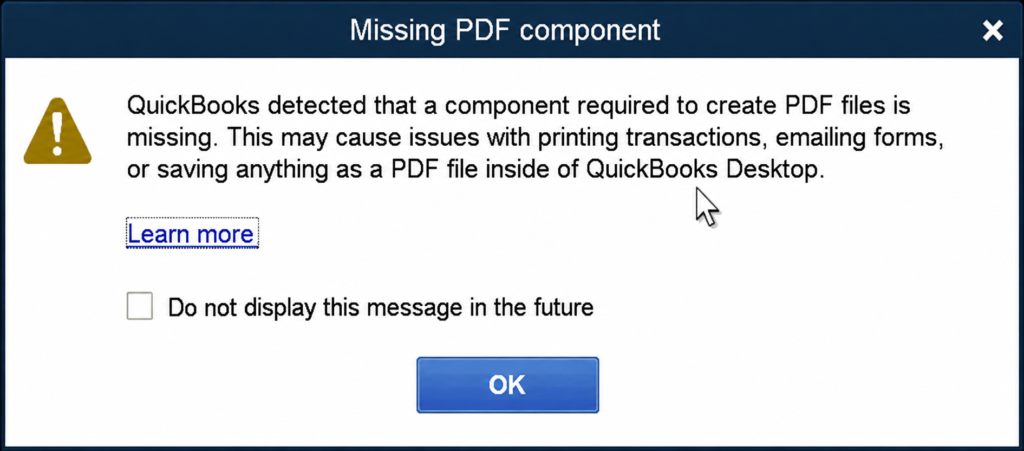
QuickBooks Desktop Accounting relies on several Windows and QuickBooks components to generate PDF files. When one of these components becomes corrupted, disabled, outdated, or inaccessible, QuickBooks cannot create PDF documents.
As a result, you may see errors such as:
- QuickBooks PDF component missing
- QuickBooks PDF error
- QuickBooks PDF Not Working
- QuickBooks PDF converter issue
- QuickBooks can’t complete the current action due to a missing component
- Unable to save forms or reports as PDF
- PDF Converter Activation Error
According to Intuit, QuickBooks uses PDF and printing-related components such as the Microsoft XPS Document Writer, QuickBooks PDF Converter, printer drivers, and Windows permissions to create PDF files successfully.
Common Symptoms of QuickBooks PDF Not Working
Before troubleshooting, verify whether you’re experiencing any of these symptoms:
1.PDF Files Won’t Generate:
QuickBooks freezes or displays an error when attempting to save a report as PDF.
2. Unable to Email Forms
Invoices, purchase orders, statements, or reports fail to attach to emails.
3. Print Jobs Fail
Printing stops unexpectedly or QuickBooks cannot connect to a printer.
4. Missing Component Error Message
QuickBooks displays:
QuickBooks can’t complete the current action due to a missing component.
5. PDF Converter Errors
The QuickBooks PDF Converter appears offline or unavailable.
Installation Errors
You encounter:
- Error 1722
- Error 1801
- PDF Converter Activation Errors
These symptoms often indicate that a required PDF generation component is damaged or inaccessible.
Why Does the QuickBooks PDF Component Missing Error Occur?
Several technical issues can trigger this error.
1. Microsoft XPS Document Writer Is Disabled
QuickBooks uses Microsoft’s XPS technology during PDF creation. If XPS Document Writer is disabled in Windows Features, QuickBooks Migration Failed may fail to create PDFs.
2. Damaged QuickBooks PDF Converter
A corrupted PDF converter can interrupt PDF generation.
3. Outdated QuickBooks Desktop
Older releases may contain compatibility issues with newer Windows updates.
4. Corrupted Adobe Acrobat Reader
Although QuickBooks doesn’t require Adobe Reader for PDF creation, damaged PDF associations can contribute to PDF-related errors.
5. Windows Permission Problems
Restricted TEMP folder permissions prevent QuickBooks from generating temporary PDF files.
6. Printer Driver Issues
QuickBooks relies heavily on Windows printing services. A malfunctioning printer driver can cause PDF generation failures.
7. Windows Updates
Some Windows updates have historically affected XPS Document Writer functionality and PDF printer configurations.
8. Security Software Restrictions
Antivirus or endpoint protection software may block QuickBooks from creating temporary PDF files.
Quick Checklist Before Troubleshooting
Before attempting advanced fixes:
- Restart QuickBooks
- Restart Windows
- Install the latest Windows updates
- Update QuickBooks Desktop
- Verify administrator permissions
- Temporarily disable third-party antivirus software
Solutions to Fix QuickBooks Detected that a Component Required to Create PDF
Let’s explore how to fix the QuickBooks PDF component missing issue with effective troubleshooting steps:
Solution 1: Update QuickBooks Desktop
Running an outdated QuickBooks version is one of the most common causes of PDF-related problems.
Steps to Update QuickBooks
1.Open QuickBooks Desktop.
2. Select Help.
3. Click Update QuickBooks Desktop.
4. Choose Update Now.
5. Install all available updates.
6. Restart QuickBooks.
After updating, test PDF creation again.
Why this works:
Updates frequently include fixes for compatibility issues, printing services, and PDF-related bugs.
Solution 2: Run the QuickBooks Print & PDF Repair Tool
Intuit specifically recommends using the QuickBooks Print & PDF Repair Tool for PDF-related issues.
This utility repairs:
- Missing PDF components
- PDF converter issues
- Printer communication errors
- Save as PDF failures
- Error 1722
- Error 1801
Steps
- Close QuickBooks.
- Download and install QuickBooks Tool Hub.
- Open Tool Hub.
- Select Program Problems.
- Click QuickBooks PDF & Print Repair Tool.
- Wait for the scan to finish.
- Restart QuickBooks.
This repair utility often resolves the issue automatically.
Solution 3: Enable Microsoft XPS Document Writer
Microsoft XPS Document Writer is critical for PDF generation. If disabled, QuickBooks may display a QuickBooks PDF component missing error.
Enable XPS Document Writer
- Press Windows + R.
- Type:
optionalfeatures.exe - Press Enter.
- Locate Microsoft XPS Document Writer.
- Check the box.
- Click OK.
- Restart your computer.
Once Windows reloads, test PDF functionality again.
Solution 4: Test XPS Document Writer
Before blaming QuickBooks, verify whether XPS works outside the application.
Steps
- Open Notepad.
- Type a few words.
- Click File > Print.
- Select Microsoft XPS Document Writer.
- Save the file.
Results
If the XPS file saves successfully:
- Windows printing is functioning.
If it fails:
- XPS configuration is likely damaged.
Repairing or reinstalling XPS becomes necessary.
Solution 5: Reinstall Microsoft XPS Document Writer
If testing fails, reinstall XPS.
Remove XPS
- Open Windows Features.
- Uncheck:
- Microsoft XPS Document Writer
- XPS Viewer
- Restart Windows.
Reinstall XPS
- Return to Windows Features.
- Re-enable:
- Microsoft XPS Document Writer
- XPS Viewer
- Restart again.
Many users report this resolves the QuickBooks PDF converter issue.
Solution 6: Repair Adobe Acrobat Reader
Although QuickBooks doesn’t depend entirely on Adobe Reader, damaged PDF associations can interfere with PDF handling.
Update Adobe Reader
- Open Adobe Acrobat Reader.
- Select Help.
- Click Check for Updates.
- Install updates.
Repair Installation
- Open Control Panel.
- Select Programs and Features.
- Choose Adobe Acrobat Reader.
- Select Repair.
After completion, test QuickBooks again.
Solution 7: Reset TEMP Folder Permissions
QuickBooks stores temporary files during PDF creation.
If Windows blocks access, PDF generation fails.
Steps
- Press Windows + R.
- Type:
%TEMP% - Press Enter.
- Right-click inside the folder.
- Select Properties.
- Open Security.
- Grant Full Control to users and administrators.
Apply changes and retest PDF creation.
Solution 8: Restart Print Spooler Service
The Windows Print Spooler manages printing tasks and PDF generation.
Restart the Service
- Press Windows + R.
- Type:
services.msc - Locate Print Spooler.
- Right-click.
- Select Restart.
Launch QuickBooks and try saving a PDF again.
Solution 9: Set a Default PDF Application
Sometimes Windows doesn’t know which application should open PDF files.
Configure Default PDF Viewer
- Open Settings.
- Navigate to Apps.
- Choose Default Apps.
- Locate PDF file associations.
- Select Adobe Acrobat Reader or your preferred PDF application.
This can eliminate PDF association conflicts.
Solution 10: Check Security Software
Antivirus programs occasionally block PDF generation.
Review:
- Antivirus restrictions
- Controlled Folder Access
- Firewall rules
- Endpoint protection policies
Temporarily disable protection and test QuickBooks.
If PDFs work afterward, create an exception for QuickBooks.
Additional Troubleshooting for Windows 11 Users
Windows 11 users commonly encounter issues after upgrades or fresh installations.
Verify:
- Microsoft XPS Document Writer is enabled.
- Print Spooler is running.
- QuickBooks version is Windows 11 compatible.
- PDF repair tool has been executed.
These checks resolve many Windows 11-specific QuickBooks PDF Not Working complaints.
How to Prevent Future QuickBooks PDF Errors ?
Preventive maintenance is easier than troubleshooting.
- Keep QuickBooks Updated
Install all maintenance releases and security patches.
- Update Windows Regularly
Windows printing services receive critical fixes through updates.
- Monitor Printer Drivers
Outdated drivers frequently create PDF generation conflicts.
- Maintain TEMP Folder Permissions
Avoid aggressive security restrictions.
- Run Tool Hub Periodically
The QuickBooks Tool Hub can proactively identify and repair PDF-related issues.
- Review Antivirus Policies
Ensure QuickBooks folders are excluded from unnecessary scanning.
Final Thoughts
The QuickBooks PDF component missing error can be frustrating, especially when you’re trying to send invoices, print reports, or save critical financial records. Fortunately, the problem is typically linked to a small number of Windows and QuickBooks components.
In most cases, running the QuickBooks Print & PDF Repair Tool, enabling Microsoft XPS Document Writer, repairing permissions, or updating QuickBooks resolves the issue quickly.
Work through each solution methodically and test PDF creation after every step. By following these proven troubleshooting techniques, you can eliminate the QuickBooks PDF error, resolve the QuickBooks PDF converter issue, and restore normal PDF functionality without disrupting your accounting workflow.
Frequently Asked Questions
The most common causes include:
1. Disabled XPS Document Writer
2. Corrupted PDF Converter
3. Outdated QuickBooks
4. Printer issues
5. TEMP folder permission problems
Yes.
QuickBooks primarily uses Microsoft XPS and its own PDF converter. However, damaged PDF associations can still affect PDF handling.
Yes.
Intuit specifically recommends the Print & PDF Repair Tool for PDF converter errors, missing component issues, and PDF creation failures.
The error appears when Windows or QuickBooks cannot access a required PDF-generation component such as:
XPS Document Writer
PDF Converter
Printer drivers
Temporary file permissions
Usually not.
Most PDF-related issues can be resolved using the troubleshooting steps above without reinstalling QuickBooks.